Installing DBeaver:
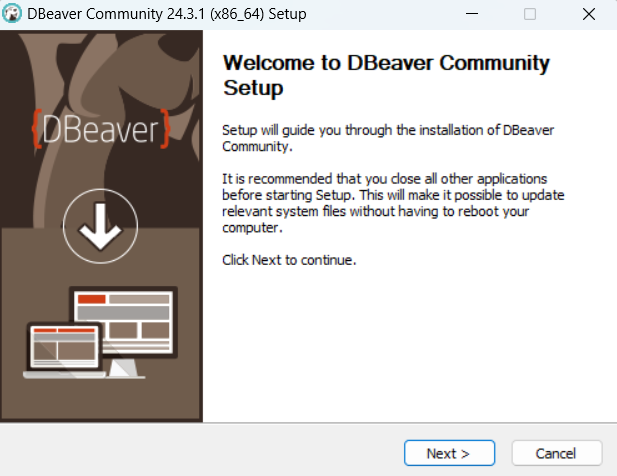
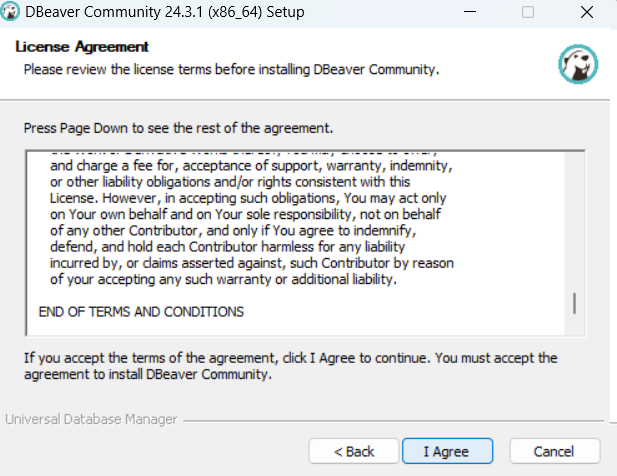
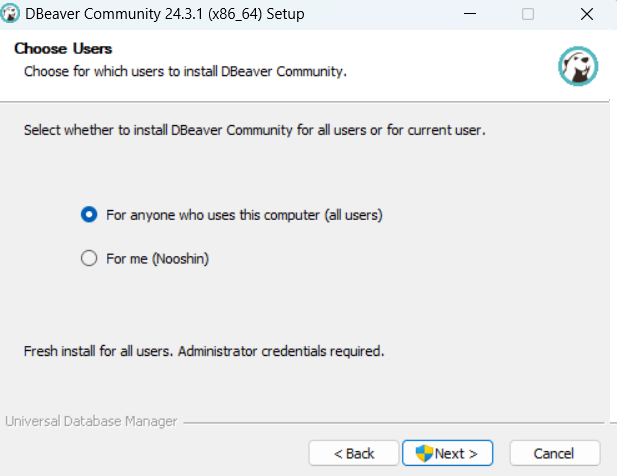
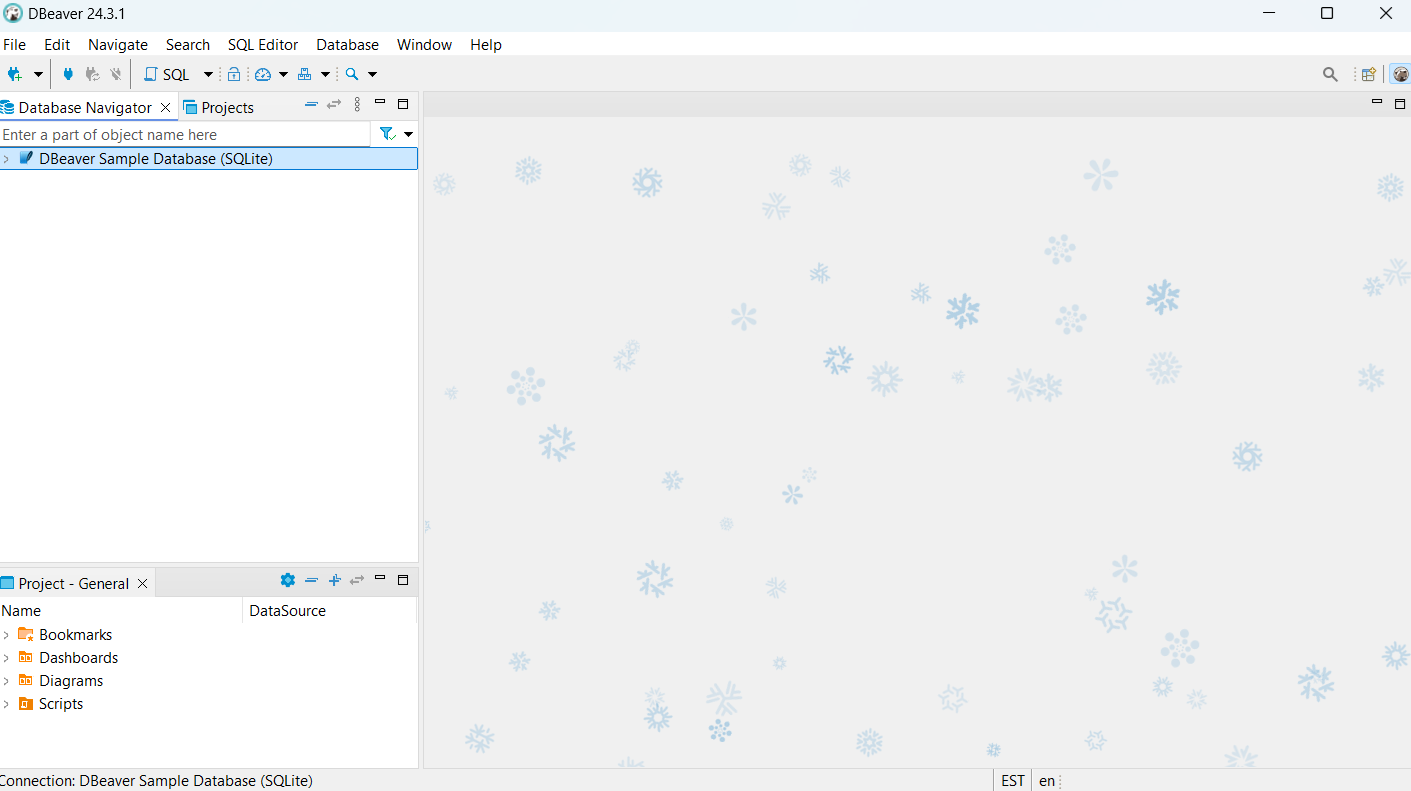
To get started, I went to the DBeaver website at Dbeaver Portal and clicked on the download link for the latest version of DBeaver, dbeaver-ce-latest-x86_64-setup.exe. I followed the installation instructions, which guided me through the process step-by-step.
Installing PostgreSQL:
Next, I downloaded PostgreSQL by visiting PostgreSQL Portal and followed the instructions to install it on my system.
Creating a Database Connection:
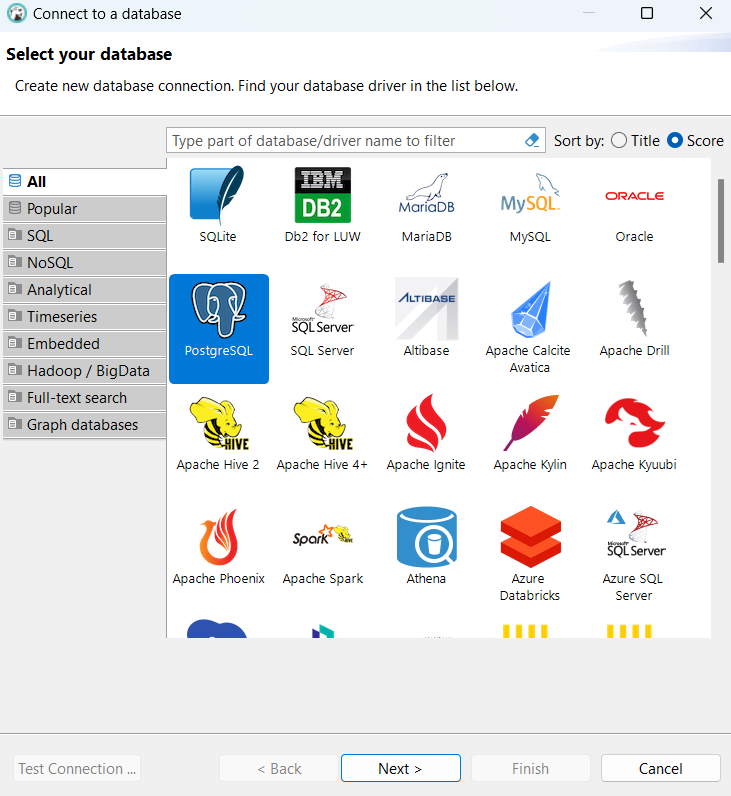
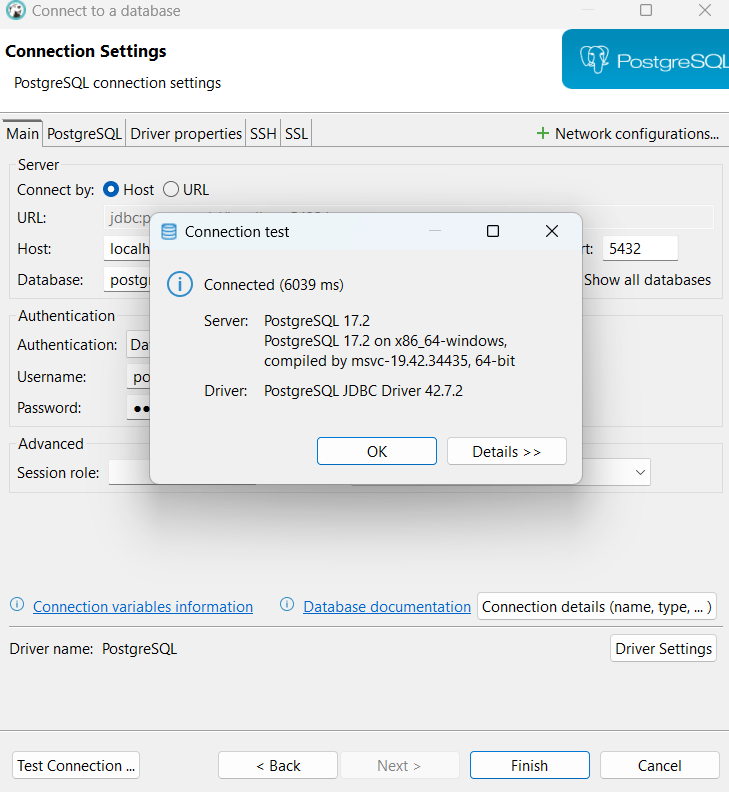
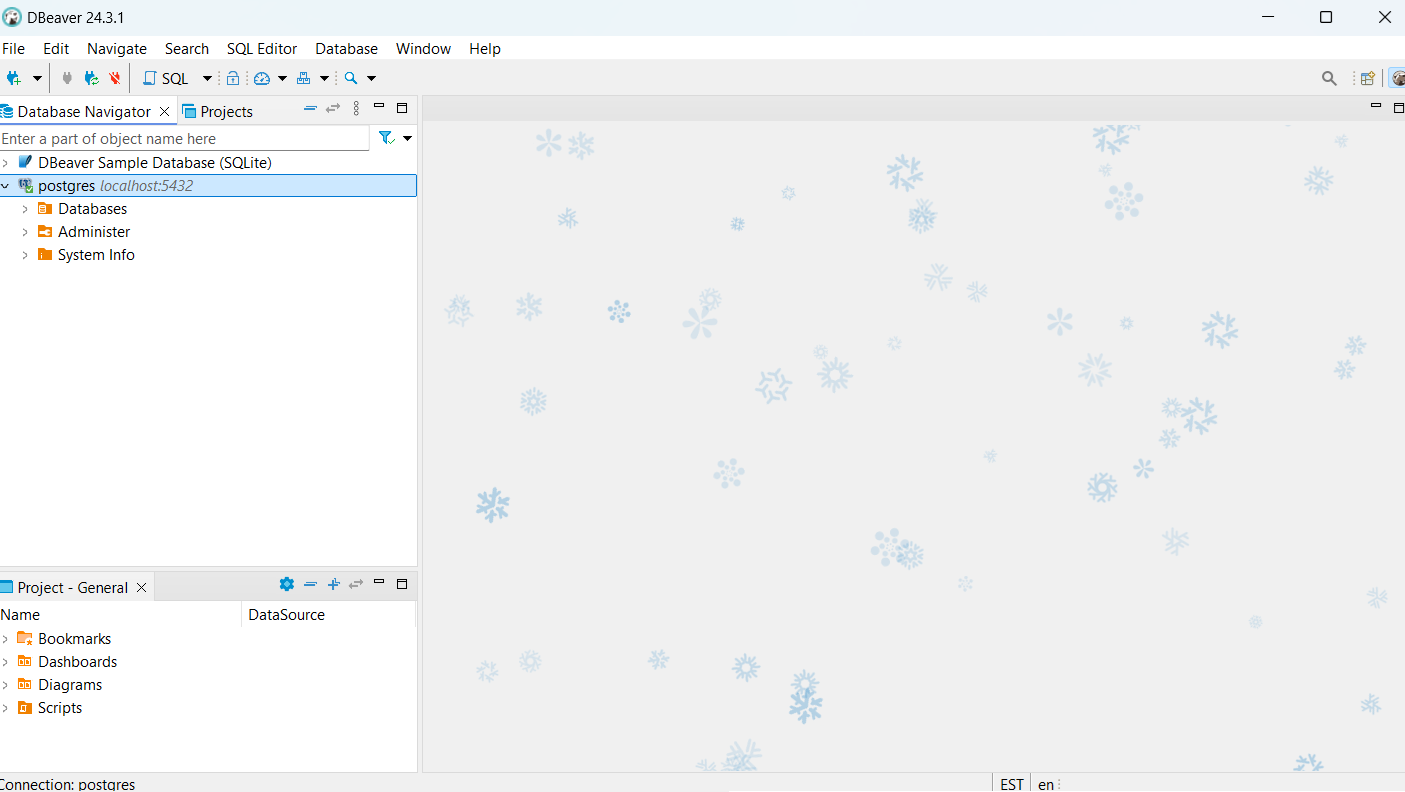
I then created a connection to my PostgreSQL database. I opened DBeaver and set up the connection, ensuring that all the necessary credentials were entered correctly. Once the connection was established, a small green tick appeared next to the database in the Database Navigator, confirming that the connection was successful.
Writing SQL Queries:
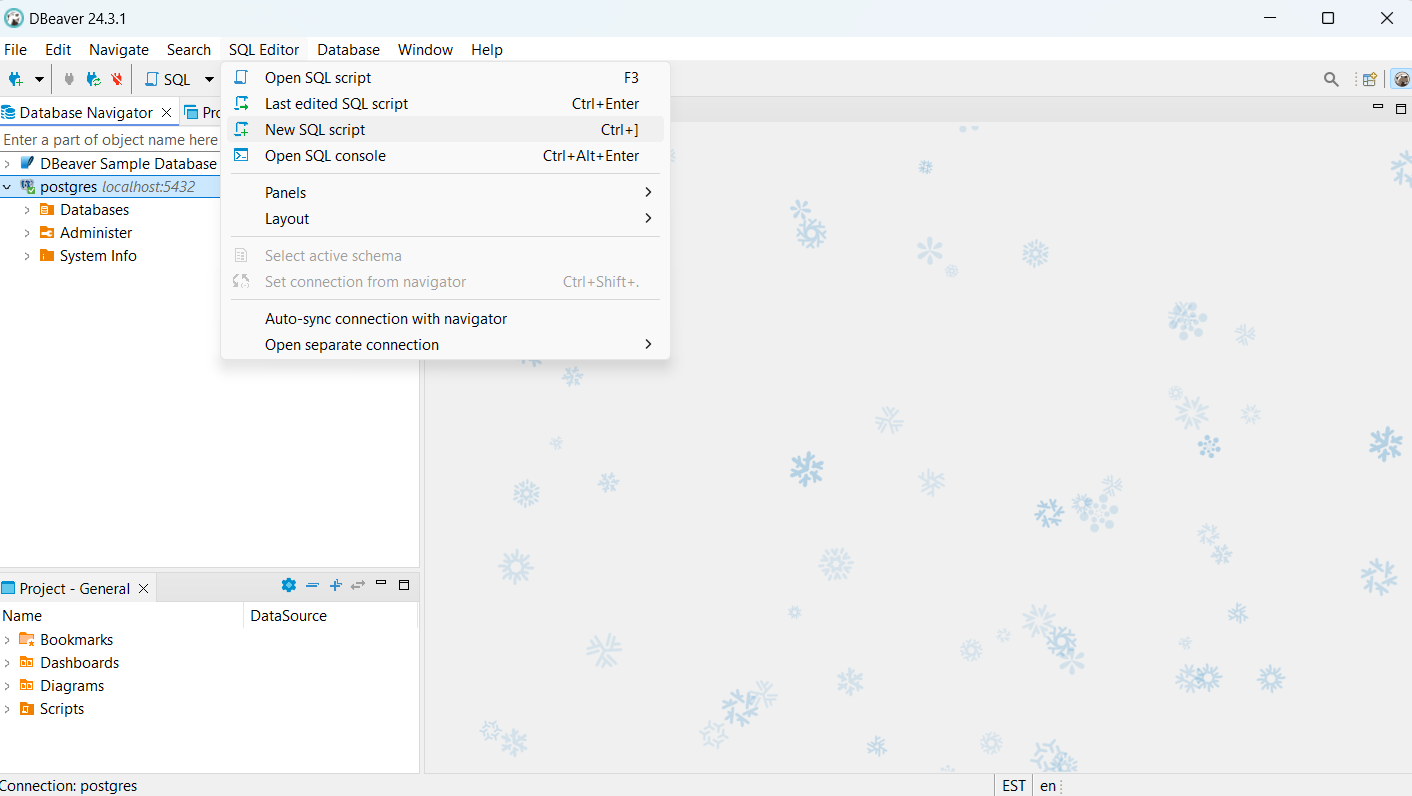
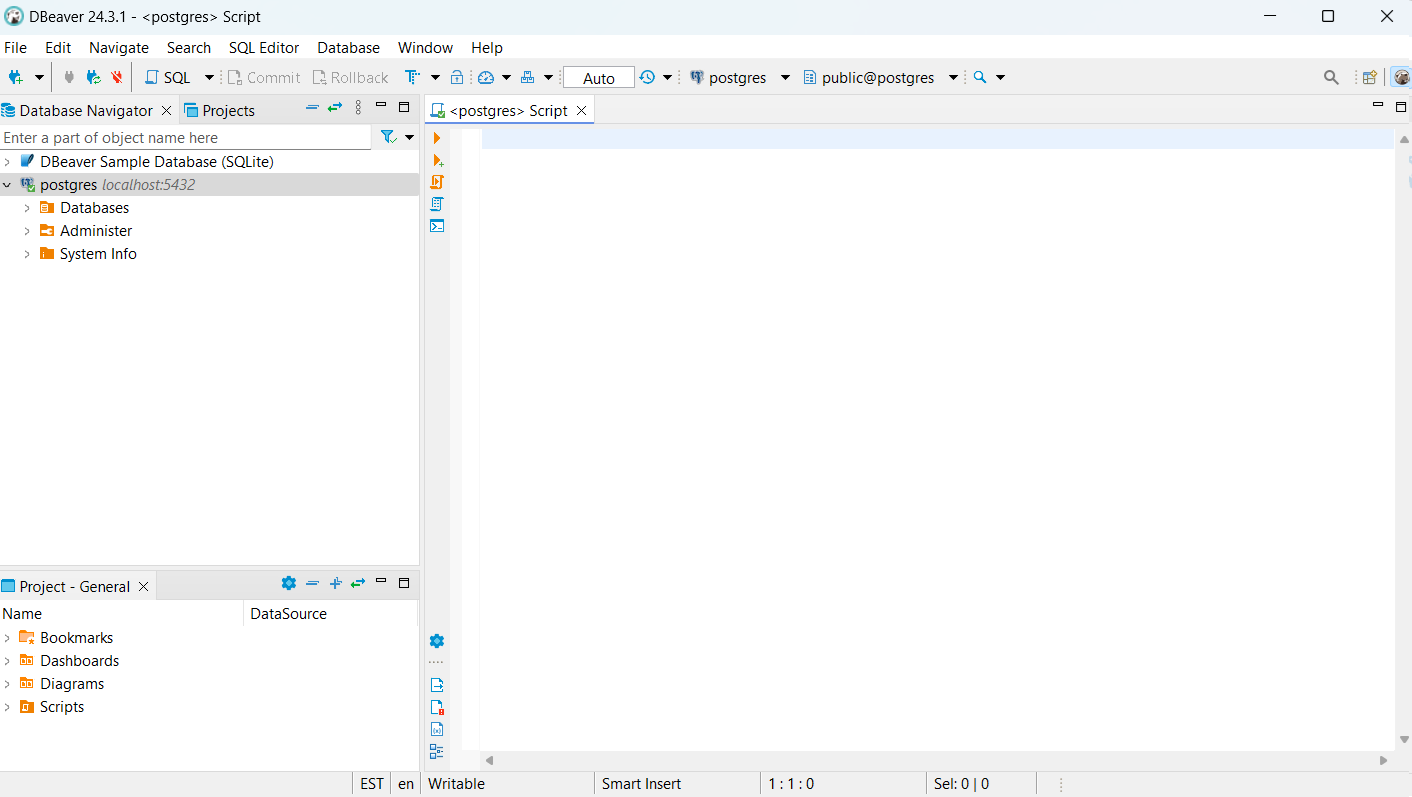
To write and execute SQL queries, I opened a new SQL Editor tab in DBeaver. In this editor, I could write queries to interact with the database.
Importing Data:
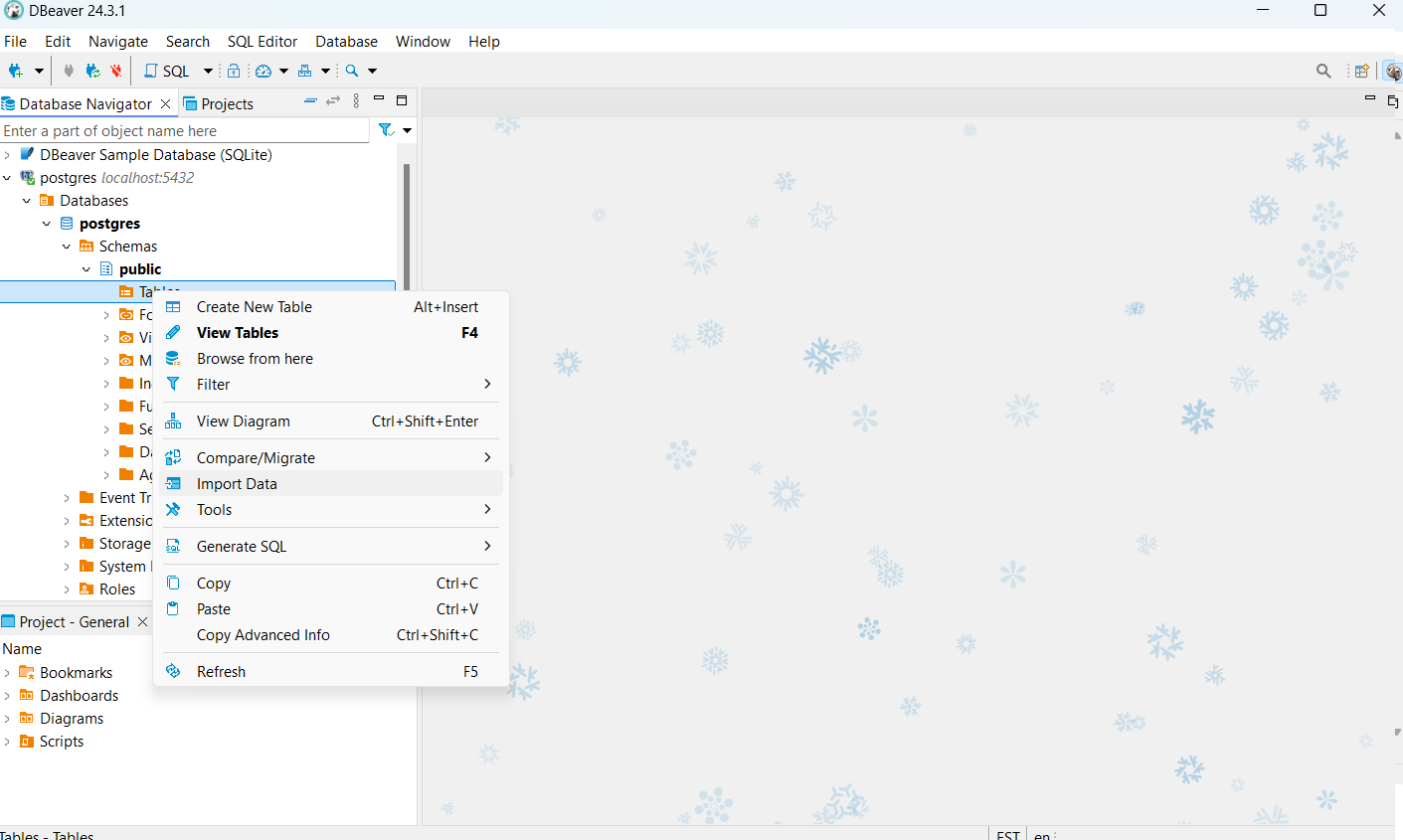
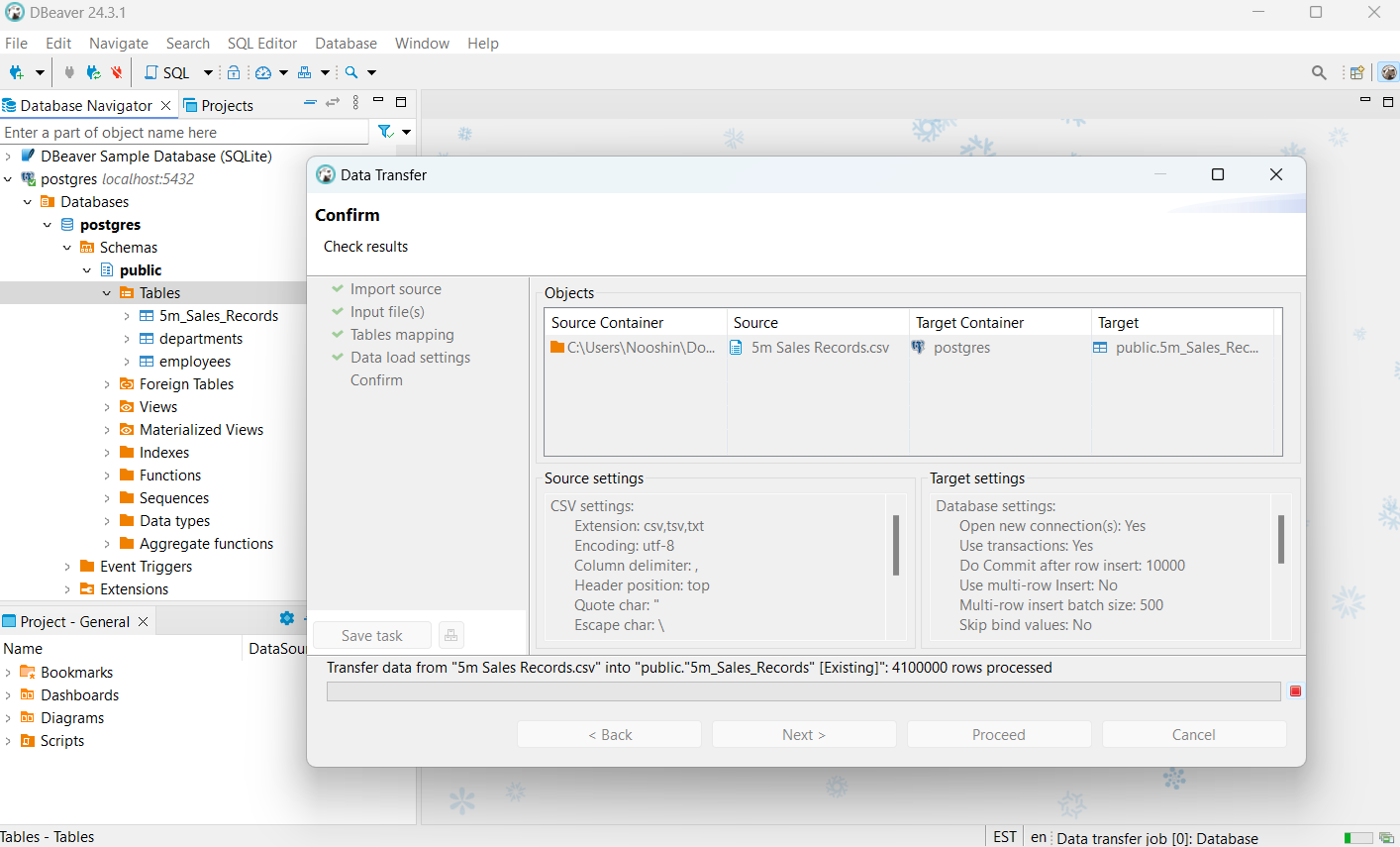
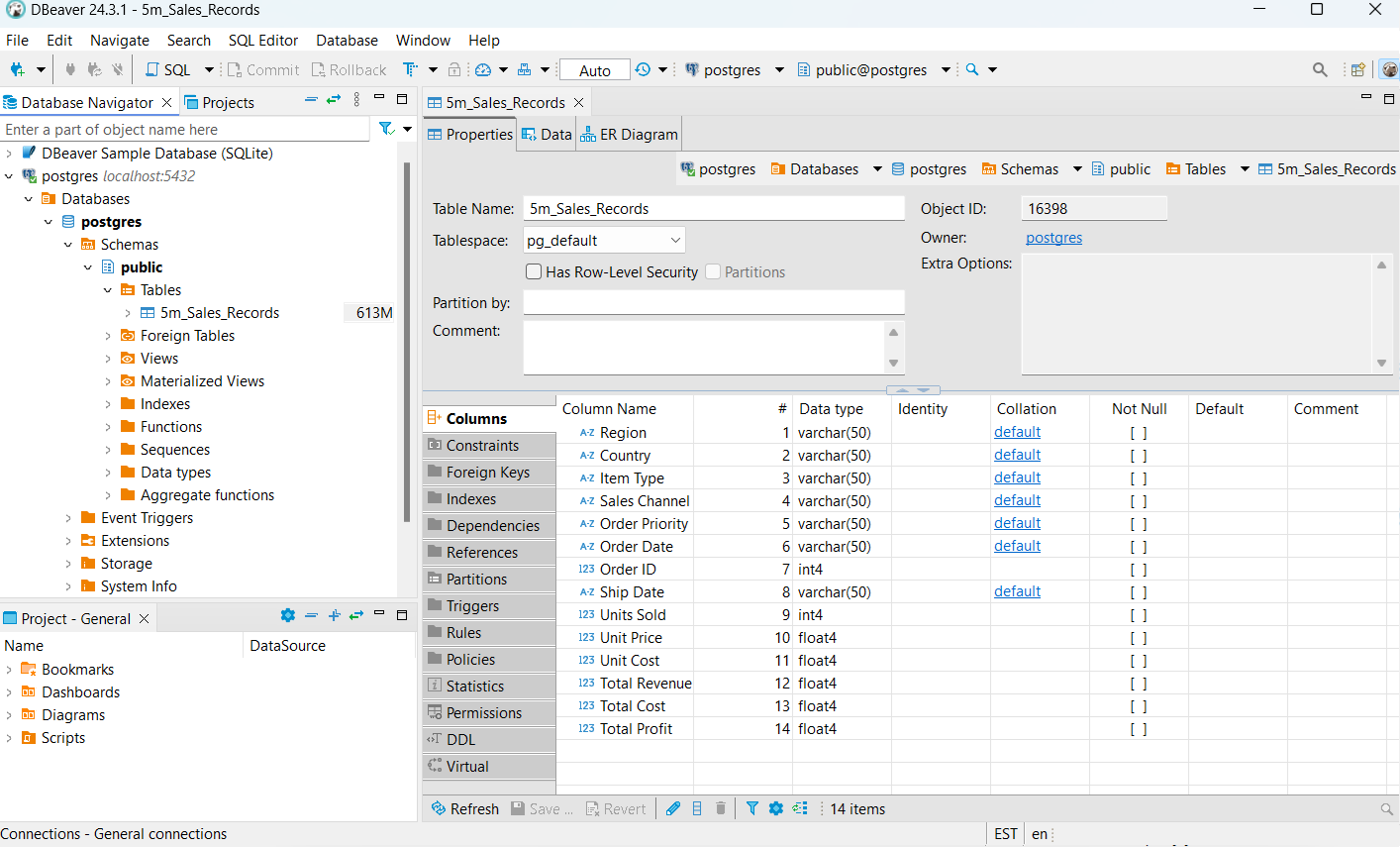
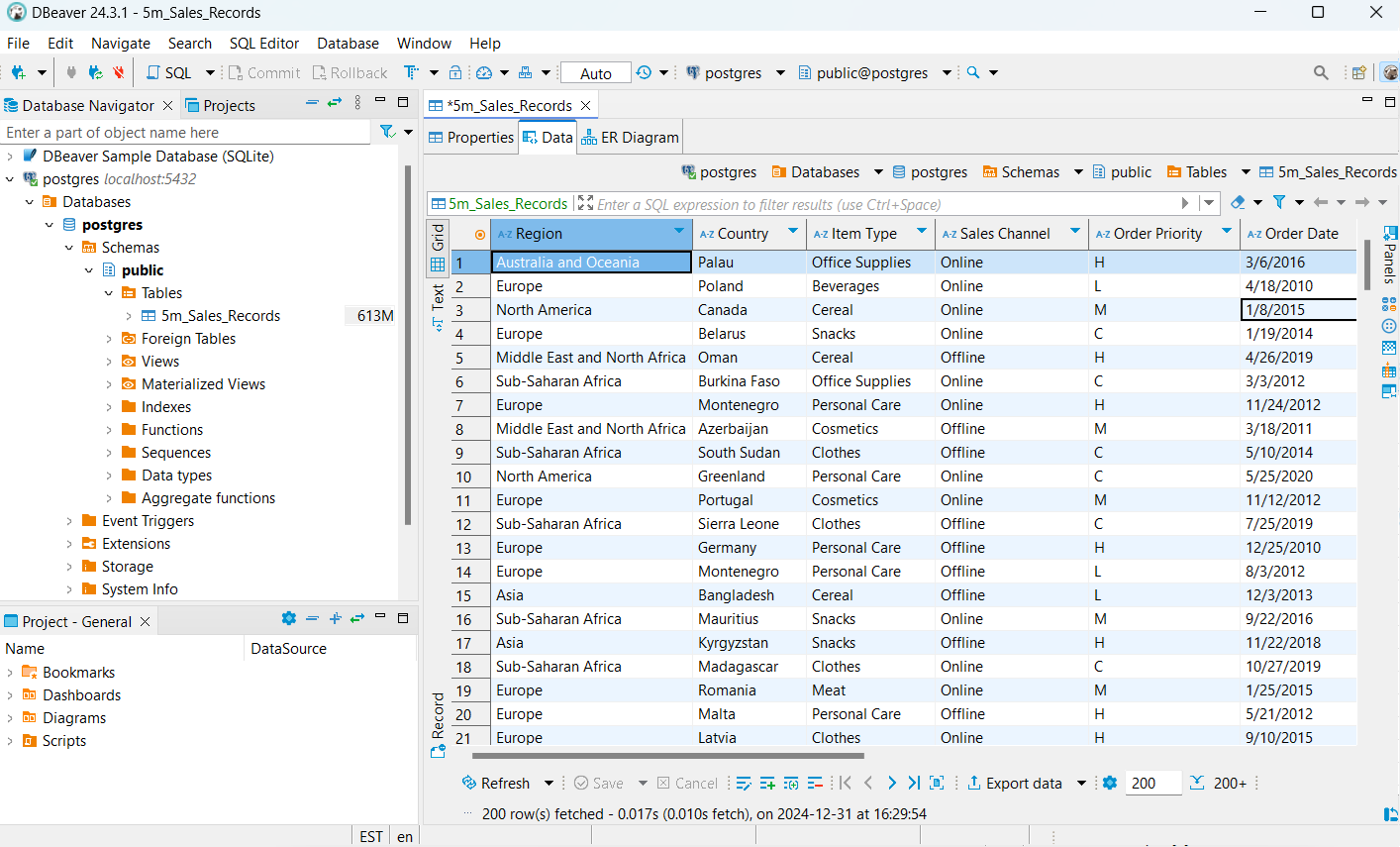
I imported data into the database by following the steps in DBeaver. I was able to upload the required datasets.
Writing a SQL Query:
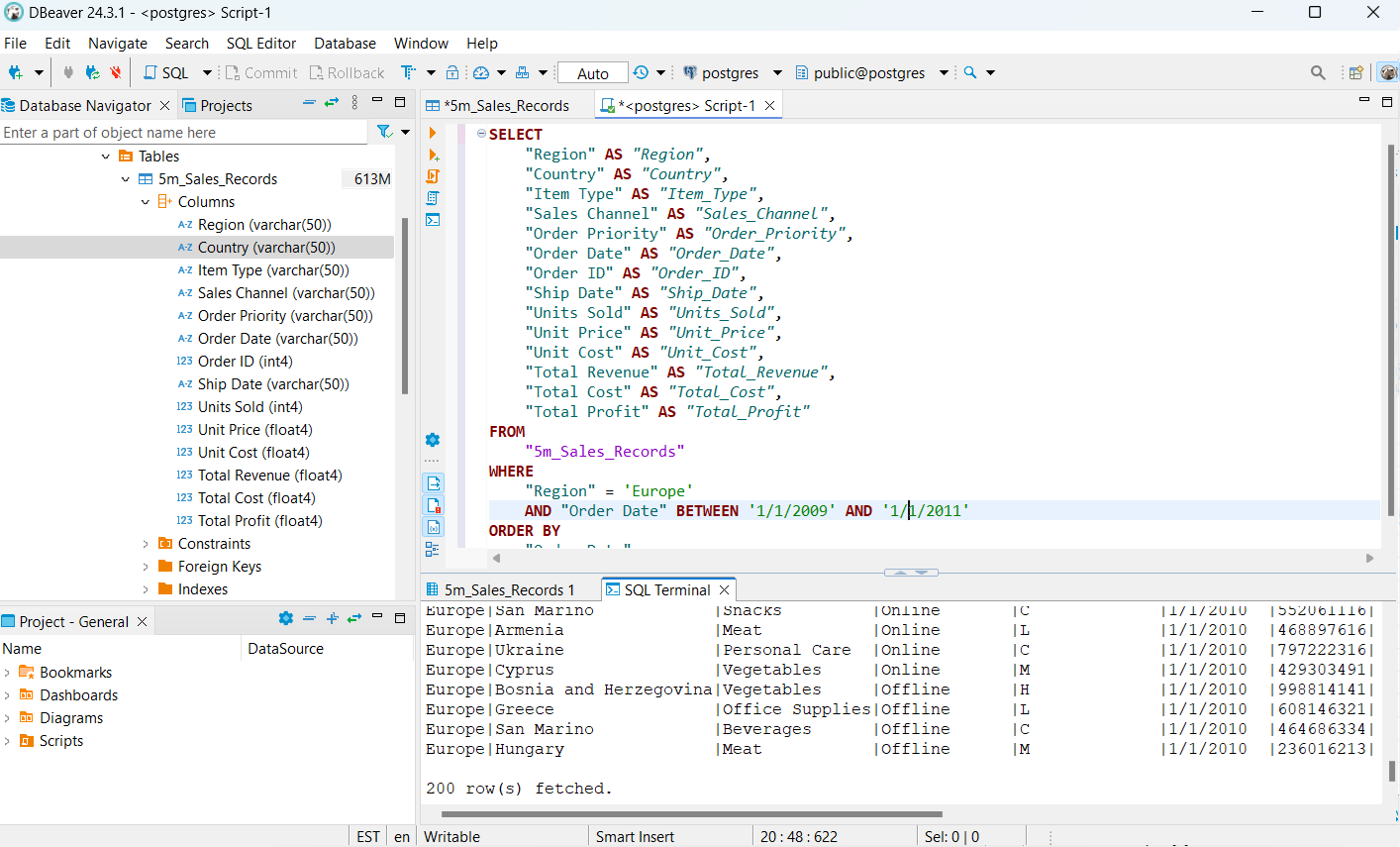
Finally, I wrote a SQL query to retrieve specific data from the database. The query was designed to select sales records for Europe between January 1, 2009, and January 1, 2011, and it included various columns related to sales details. Here's the SQL query I wrote:
            SELECT
                "Region" AS "Region",
                "Country" AS "Country",
                "Item Type" AS "Item_Type",
                "Sales Channel" AS "Sales_Channel",
                "Order Priority" AS "Order_Priority",
                "Order Date" AS "Order_Date",
                "Order ID" AS "Order_ID",
                "Ship Date" AS "Ship_Date",
                "Units Sold" AS "Units_Sold",
                "Unit Price" AS "Unit_Price",
                "Unit Cost" AS "Unit_Cost",
                "Total Revenue" AS "Total_Revenue",
                "Total Cost" AS "Total_Cost",
                "Total Profit" AS "Total_Profit"
            FROM
                "5m_Sales_Records"
            WHERE
                "Region" = 'Europe'
                AND "Order Date" BETWEEN '1/1/2009' AND '1/1/2011'
            ORDER BY
                "Order Date";