To test the link functionality using Selenium, I followed a series of steps:
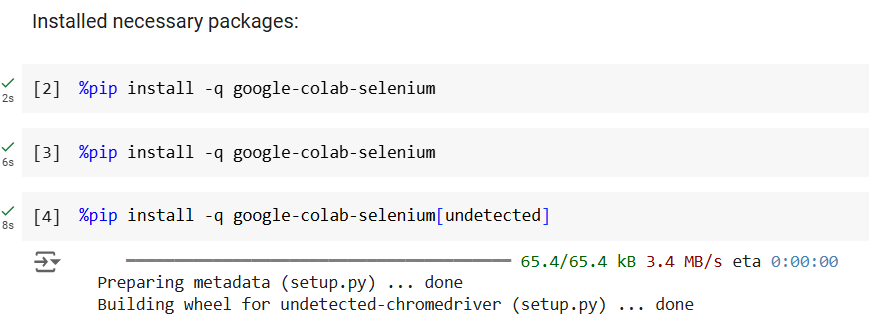
First, I installed the necessary packages in my environment by running the following commands to ensure that Selenium and Google Colab's Selenium integration were available:
%pip install -q google-colab-selenium
%pip install -q google-colab-selenium[undetected]
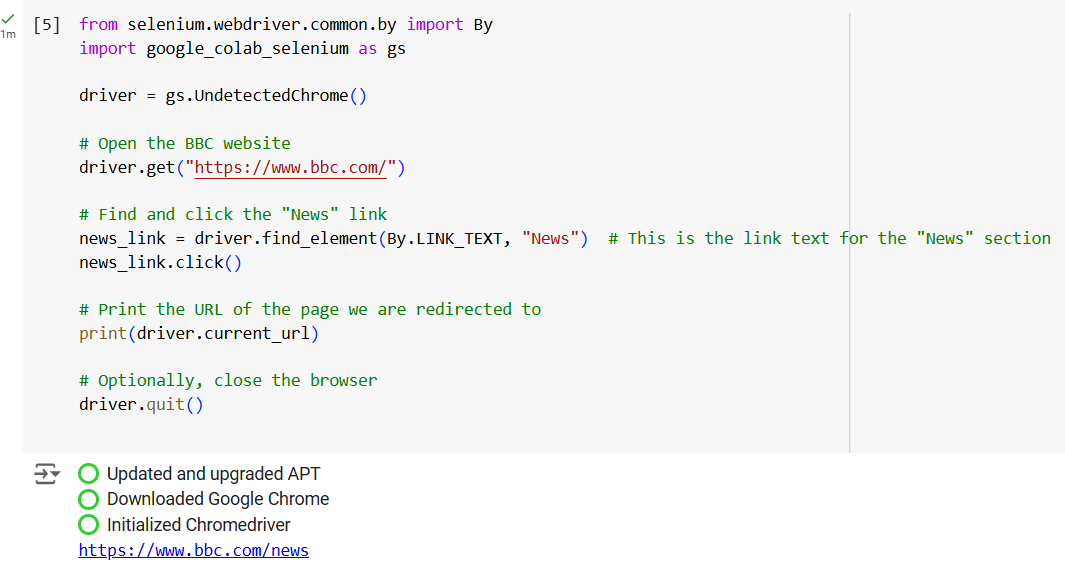
Then, I imported the required libraries to work with Selenium and Google Colab's Selenium support. I imported the By module from selenium.webdriver.common.by and the google_colab_selenium library as gs for handling the driver setup:
import google_colab_selenium as gs
I initialized an undetected Chrome browser instance using gs.UndetectedChrome(), which would allow me to avoid detection by the website. I then used this browser instance to load the BBC website:
driver.get("https://www.bbc.com/")
Next, I tested the link functionality by finding the "News" link on the BBC homepage. I located the link using its link text ("News") and clicked on it:
news_link.click()
Afterward, I printed the URL of the page I was redirected to after clicking the link:
Once I finished testing, I closed the browser using the quit() method:
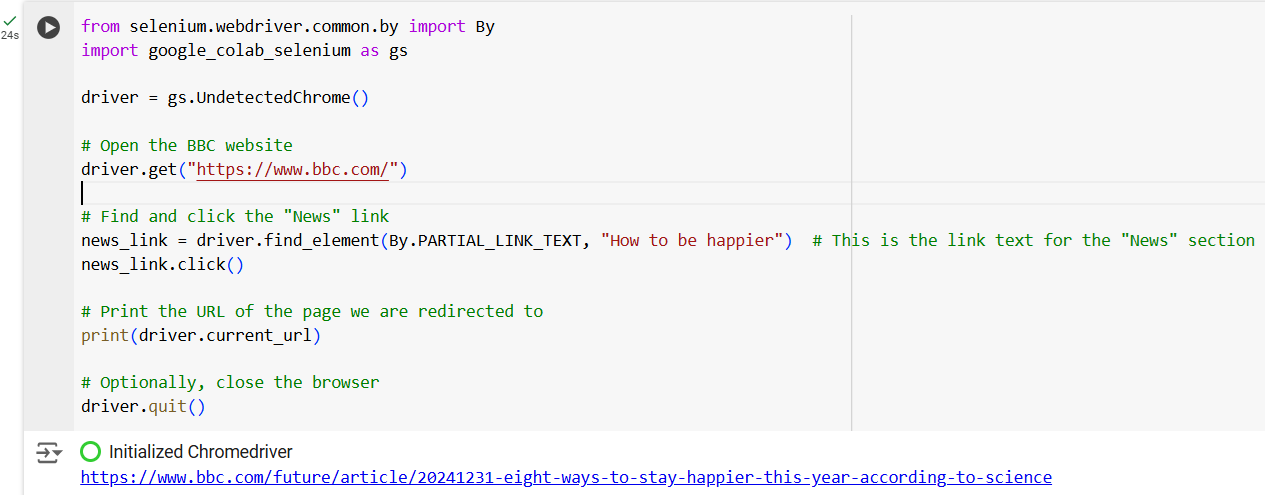
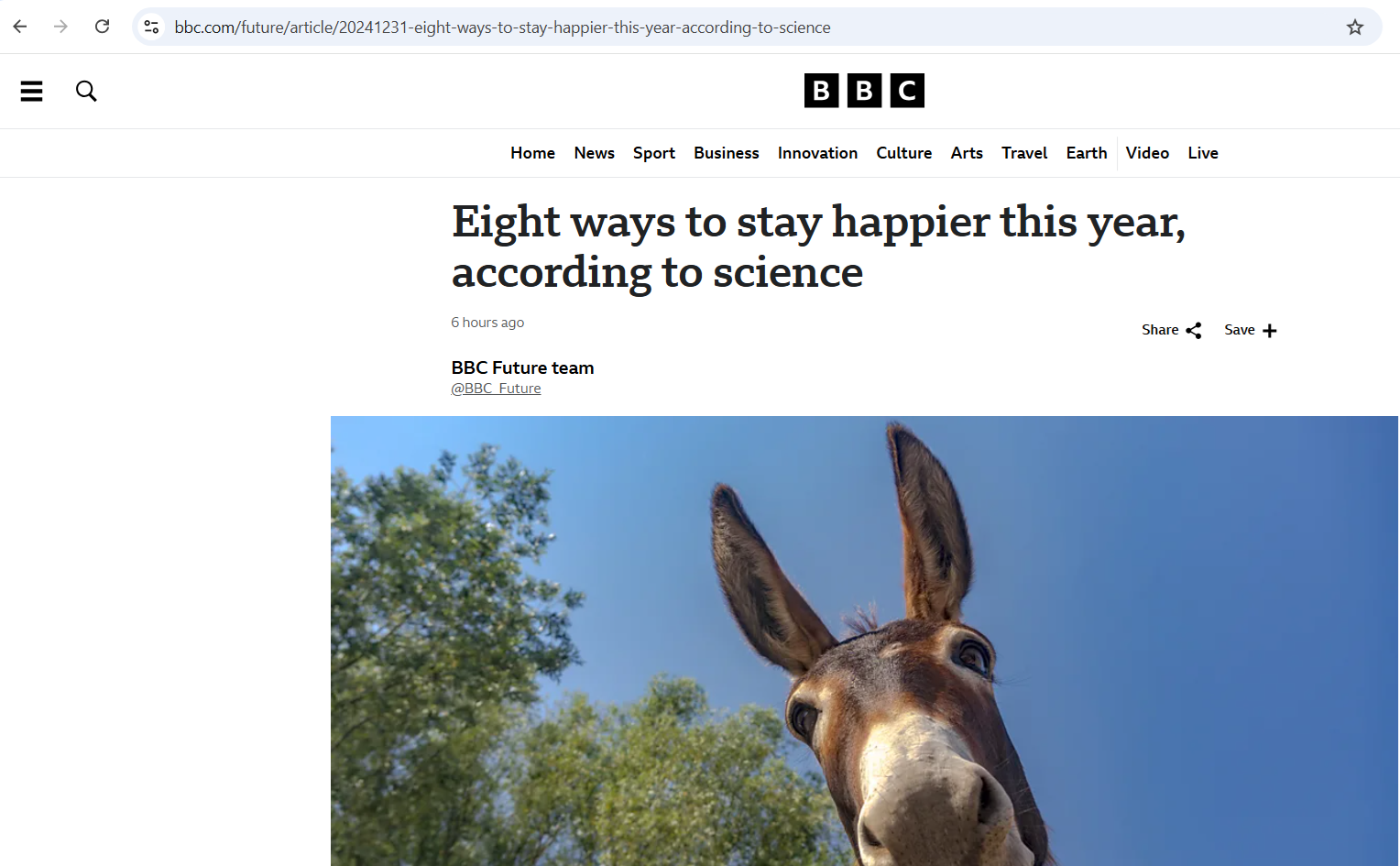
In a second part of the test, I repeated similar steps but clicked on a different link—this time, using the PARTIAL_LINK_TEXT method to locate a part of the text ("How to be happier"). I followed the same steps to load the page, click the link, and print the URL:
news_link.click()
print(driver.current_url)
Finally, I closed the browser once more:
Here is the link to the Google Colab Selenium implementation.