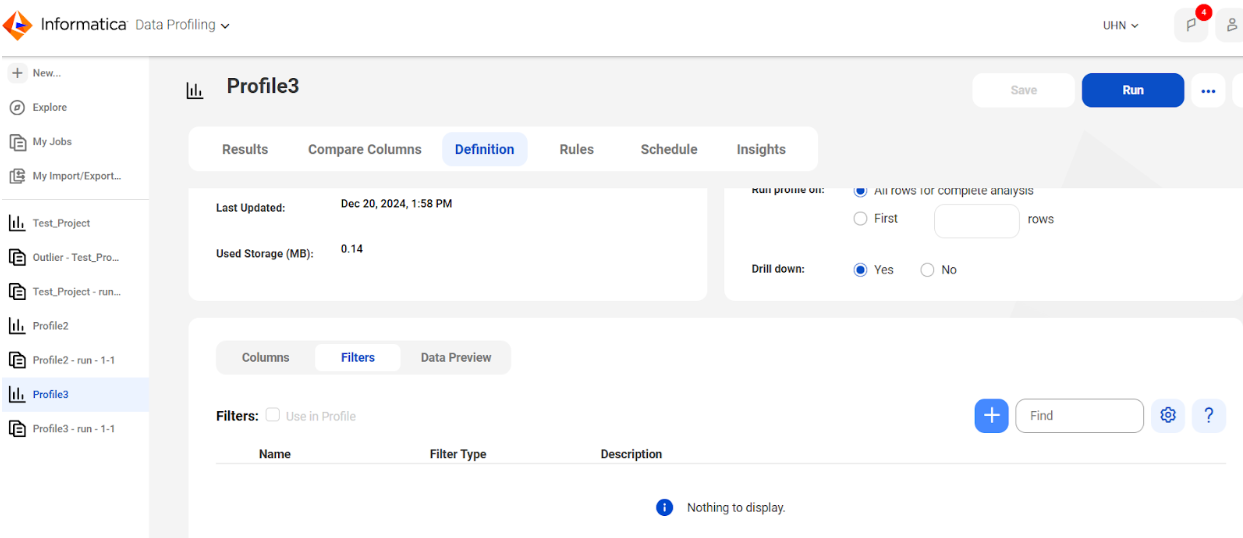
I began by logging into Informatica Intelligent Cloud Services.
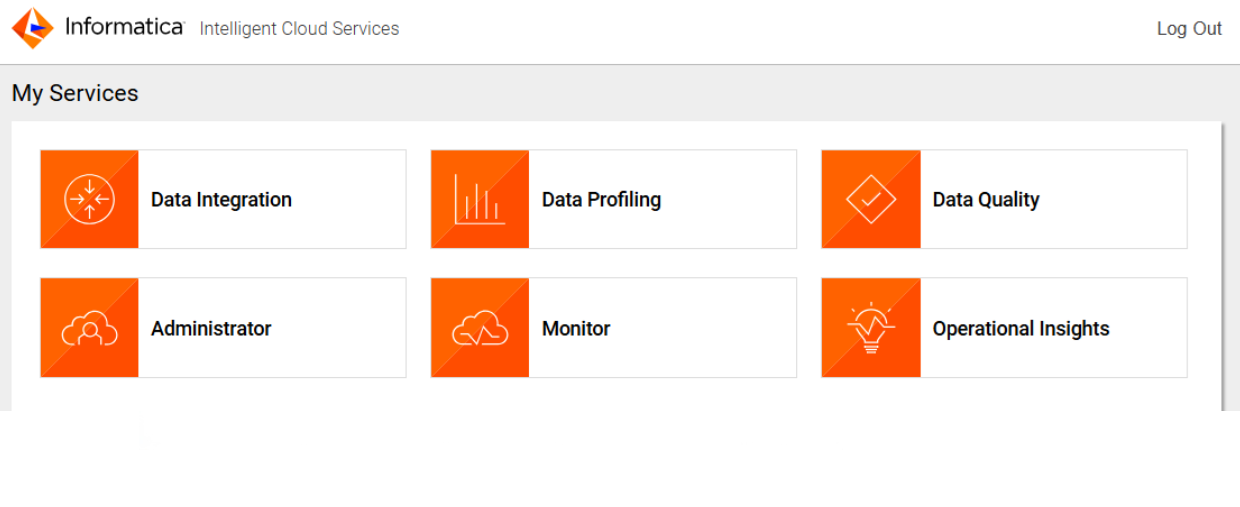
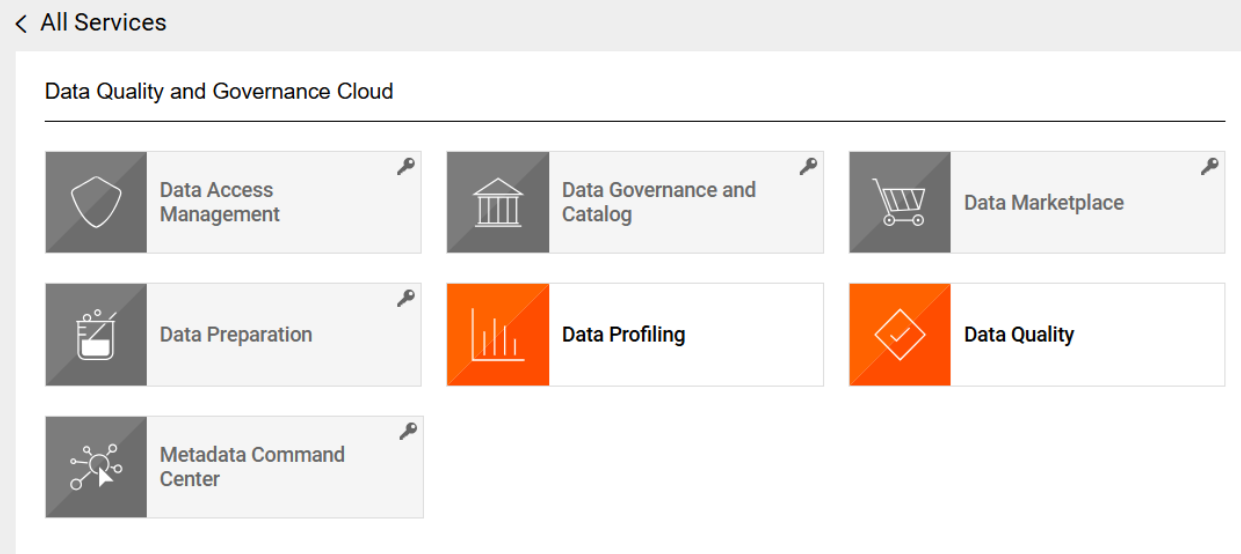
After accessing the platform, I selected the Data Profiling option.
To facilitate the process, I used SQL Developer to connect to the Oracle database, which I downloaded and installed from Oracle's official site.
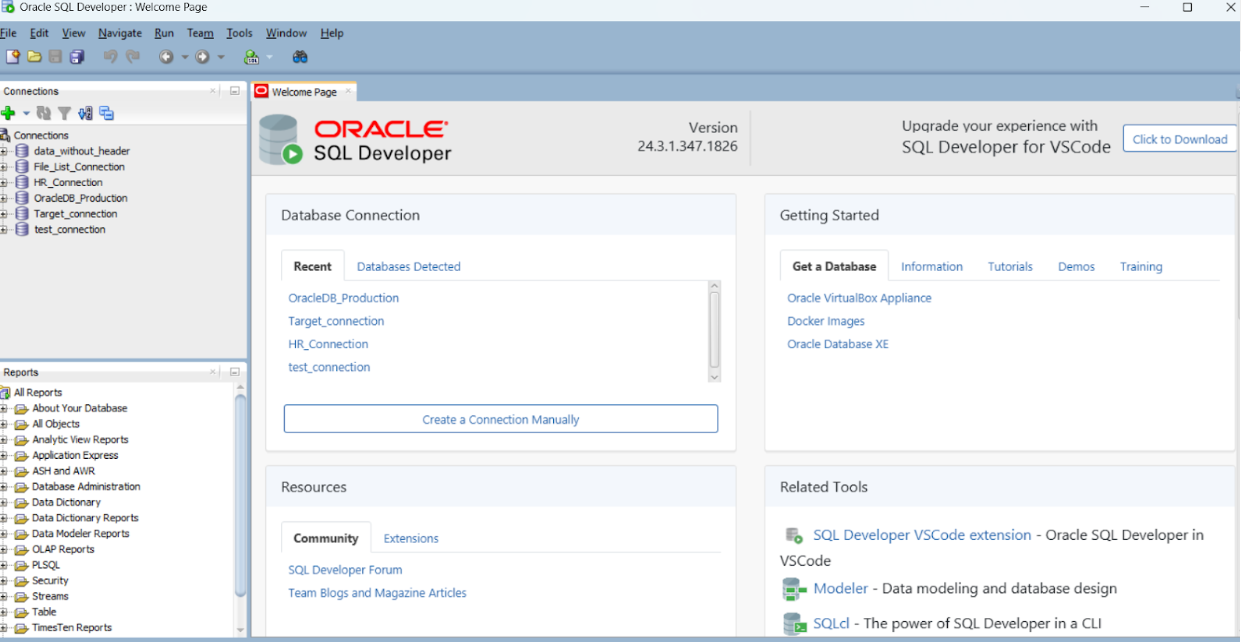
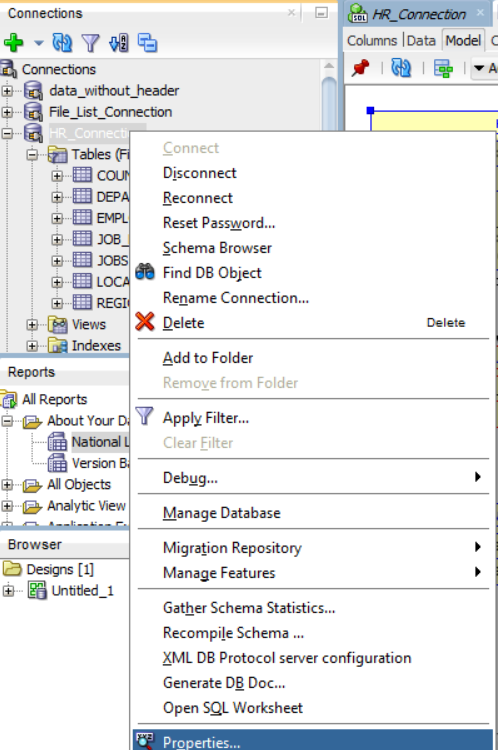
I obtained the necessary credentials and connection details from Oracle SQL Developer.
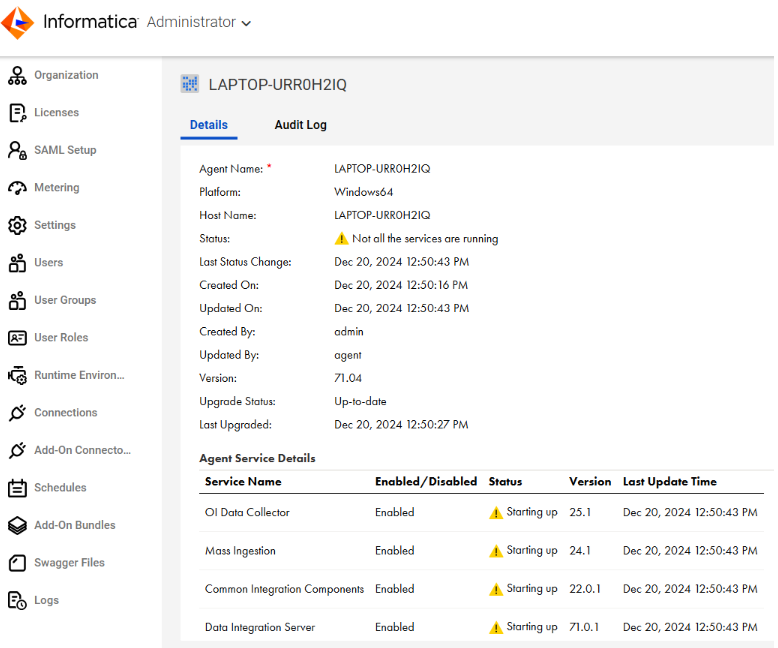
Next, I installed and ran the Informatica Cloud Secure Agent, which enabled me to establish a connection to the Oracle Database.
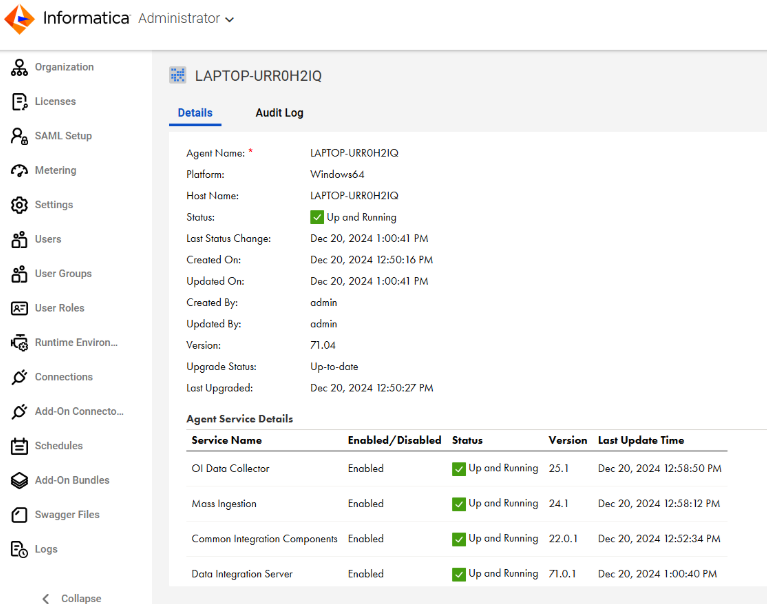
Once the connection was set up, I ran a profile using the Data Profiling tool to gather insights into the quality and structure of the data.
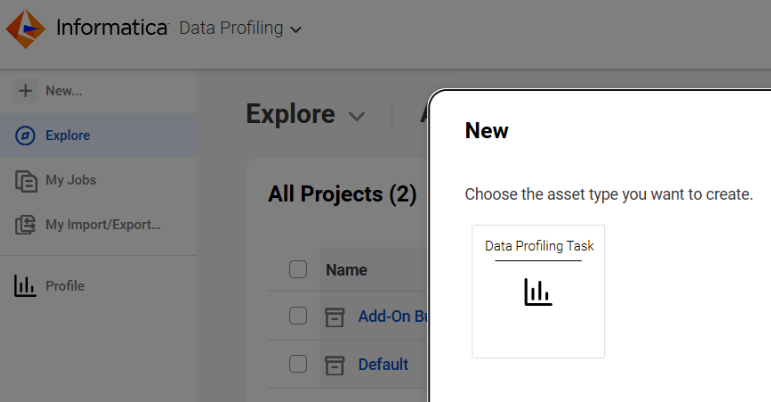
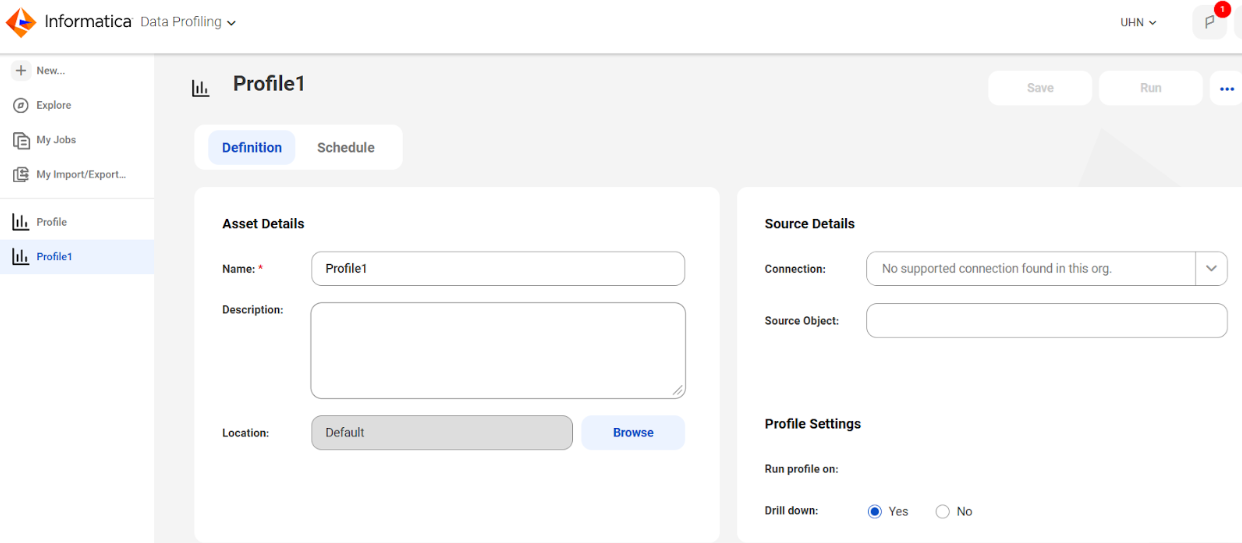
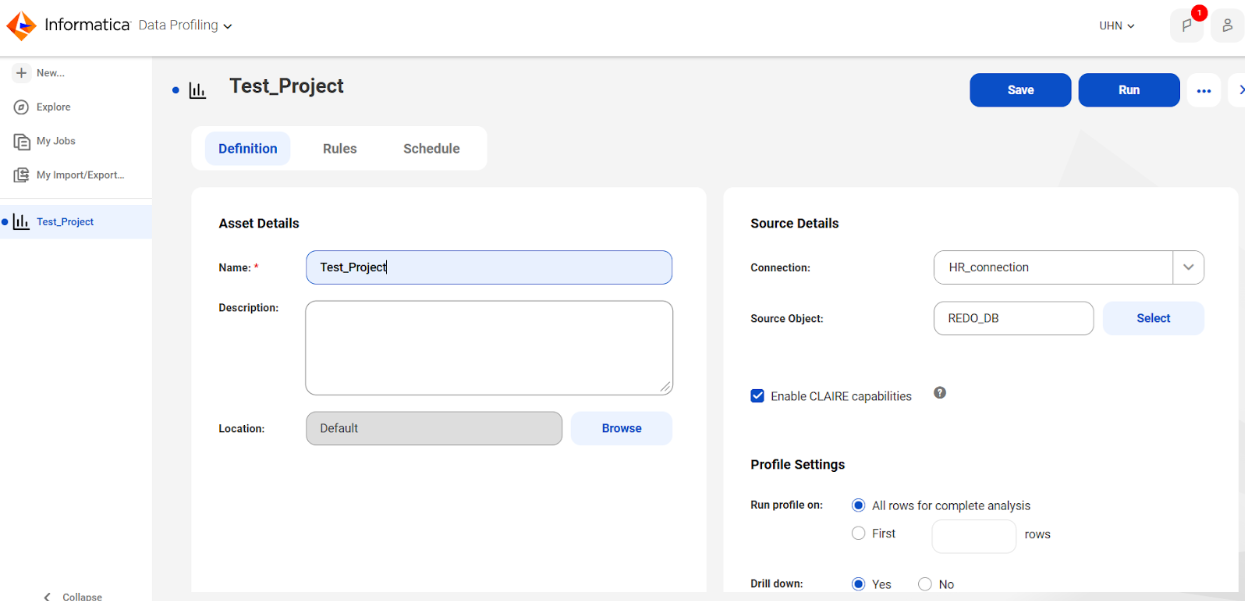
The results were displayed clearly, offering details about the data.
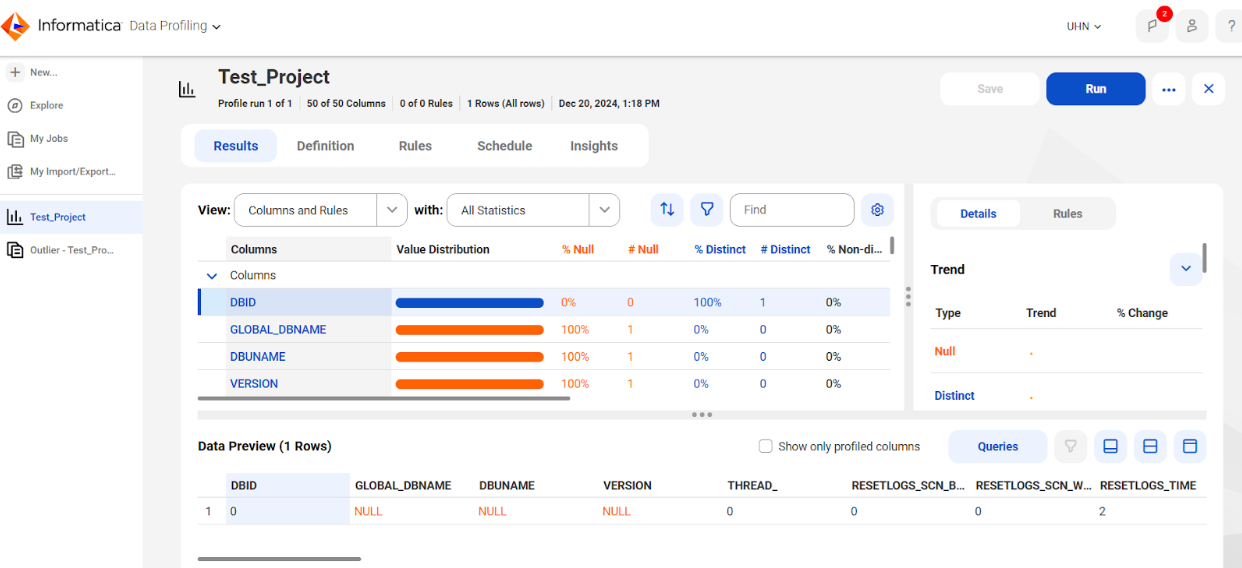
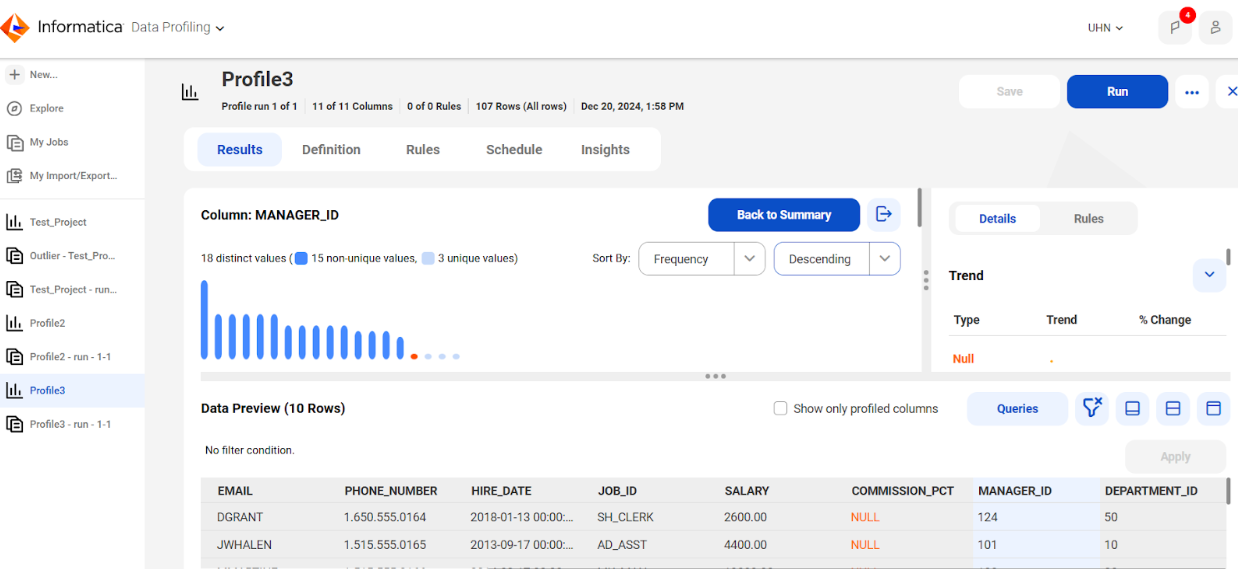
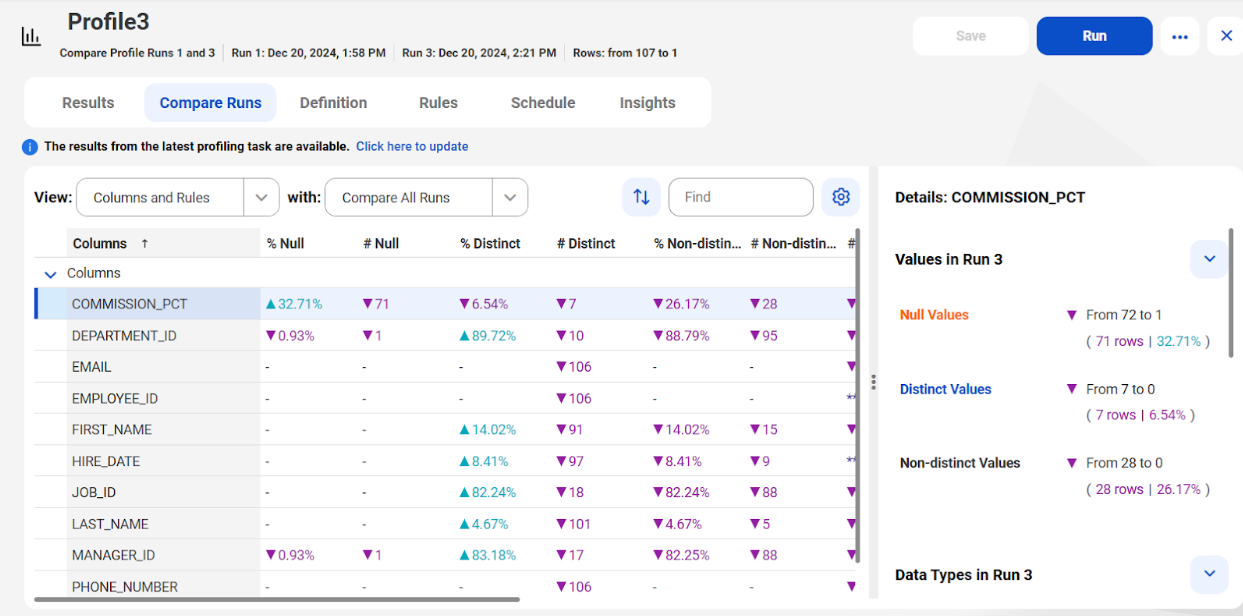
I was able to gain several insights from this analysis by comparing the columns' qualities.
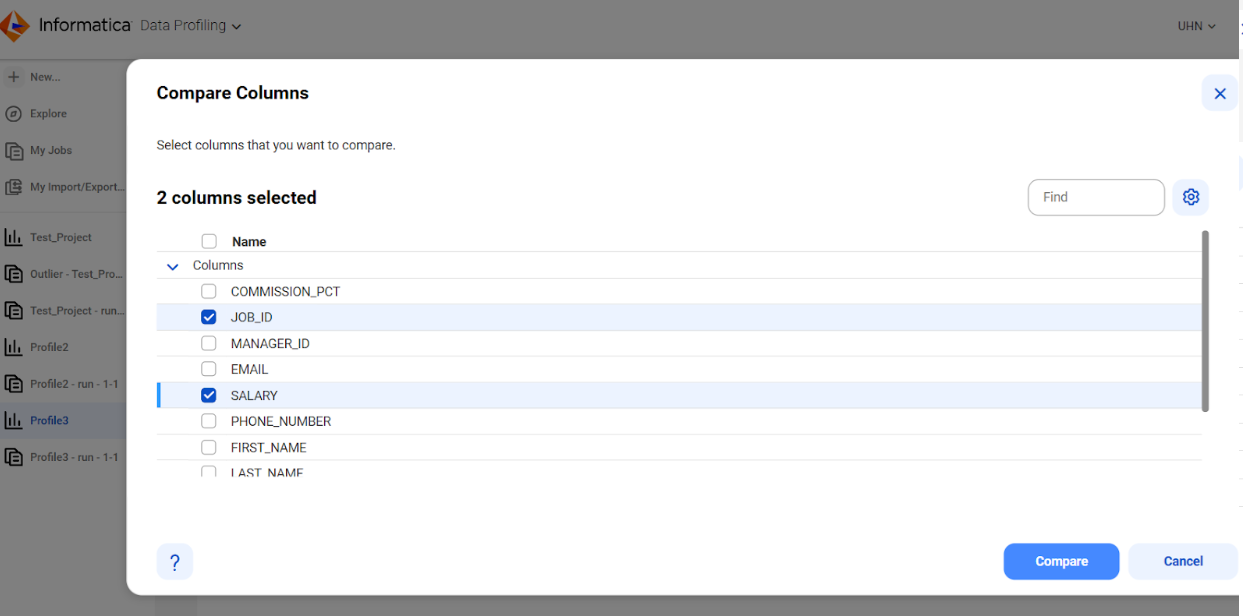
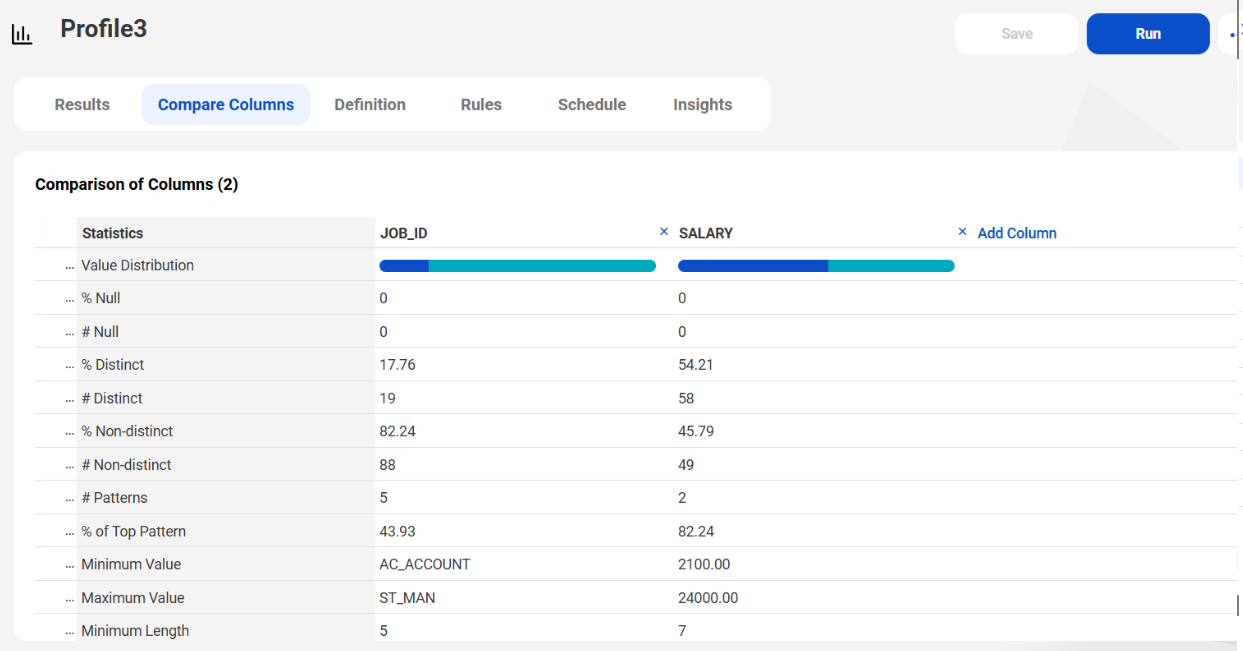
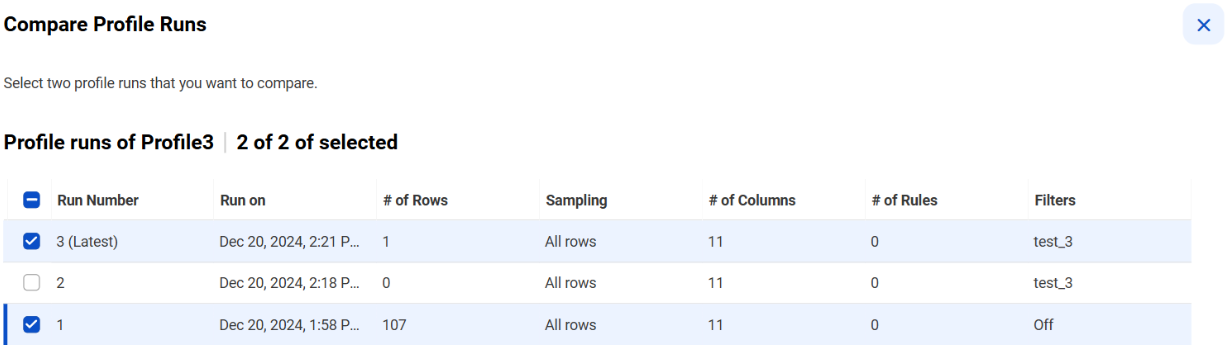
Additionally, I compared profiles in terms of their quality.