In this project, I explored tSQLt, a package designed for unit testing. For this project, I used the Adventure Works database as a sample. This database was based on Adventure Works Cycles, a fictional multinational company created by Microsoft in 2010. It manufactured and sold bicycles across North America, Europe, and Asia.
To set up the environment for this project, I used Azure Data Studio with the Adventure Works database available on Microsoft Azure. To begin, I signed up for a free trial of Azure by visiting Azure Portal and clicking on the "Try Azure for free" button. I chose the "Start Free" option and provided the required details, including my first name, last name, address, and credit card information for verification (there were no charges for the free account). After signing up, I clicked "Go to Azure Portal" to proceed.
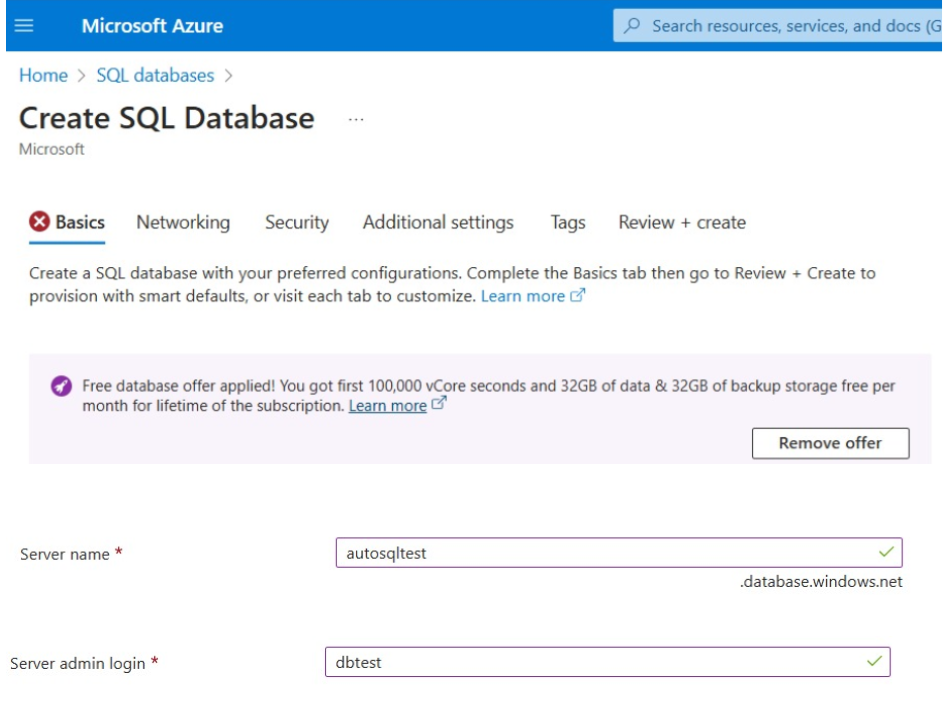
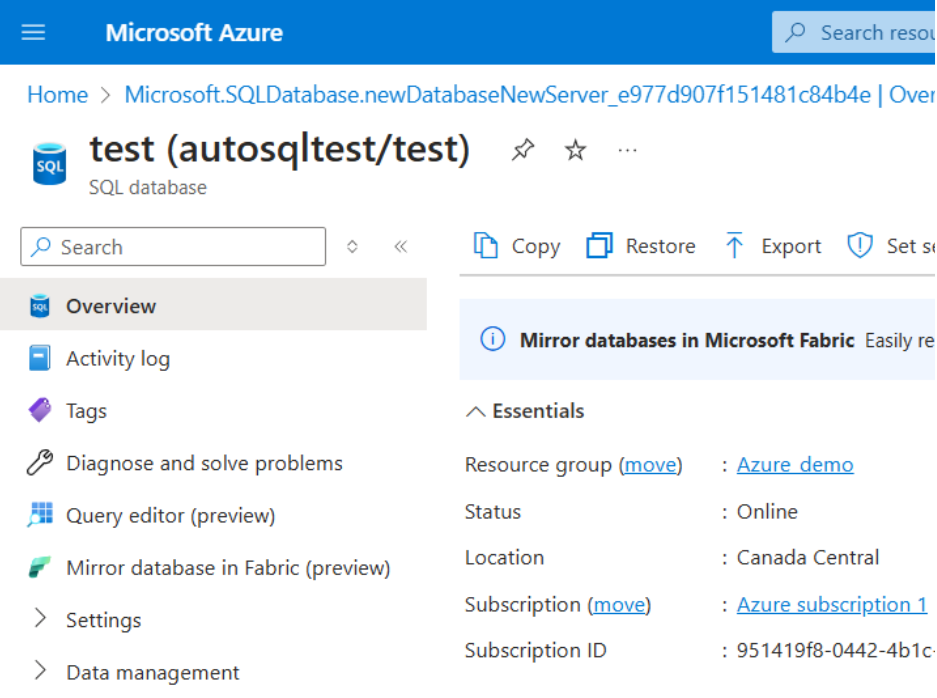
Once in the portal, I clicked on "Microsoft Azure" at the top and navigated to "SQL Databases." I then clicked "Create SQL Database" and selected "Apply offer" to take advantage of the free database offer. I needed to create a new resource group and provide a name for the database. Since there was no server yet, I clicked "Create new" to set up a server, entering a unique server name, choosing a location, and setting the authentication method, including a server admin login and password. After confirming, I clicked "OK" and proceeded to the networking settings by clicking "Next." I selected the "General Purpose" serverless option with 2 V cores, applied the settings, and chose "Public endpoint" as the default connectivity method. I allowed services and resources to access the server by selecting "Yes" and added my current IP address to enable the database connection from my device. I kept the default connection policy and TLS version 1.2, then continued to the next section.
Below is an image related to the setup:
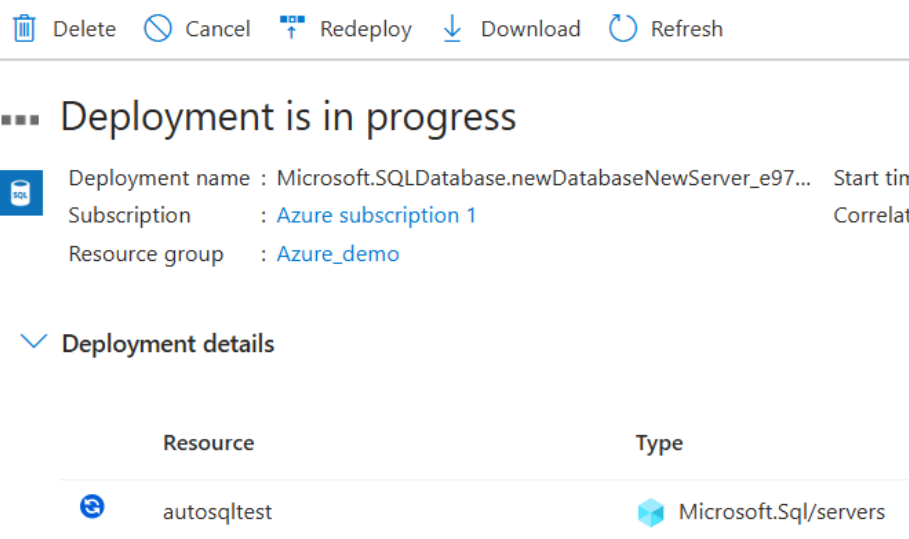
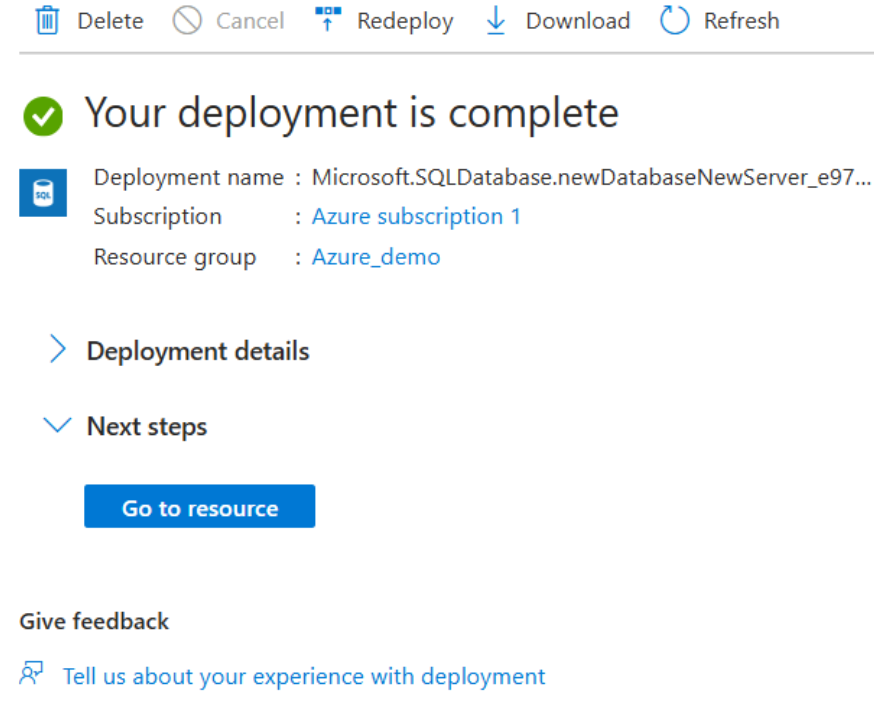
Next, I reviewed the settings and selected "AdventureWorks LT" as the sample database for querying and learning. After confirming details like the subscription, resource group, region, database name, server, admin login, and configuration, I clicked "Create" to deploy the database.
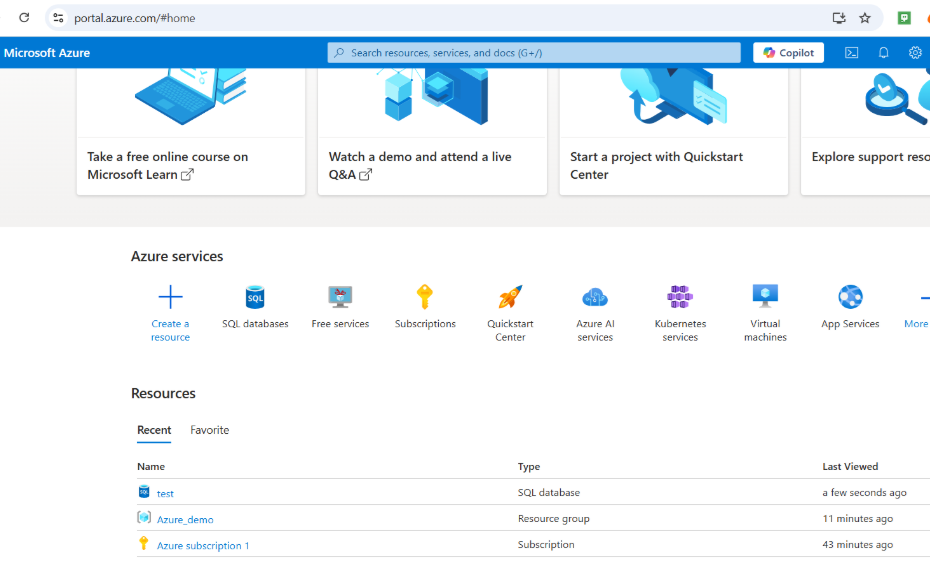
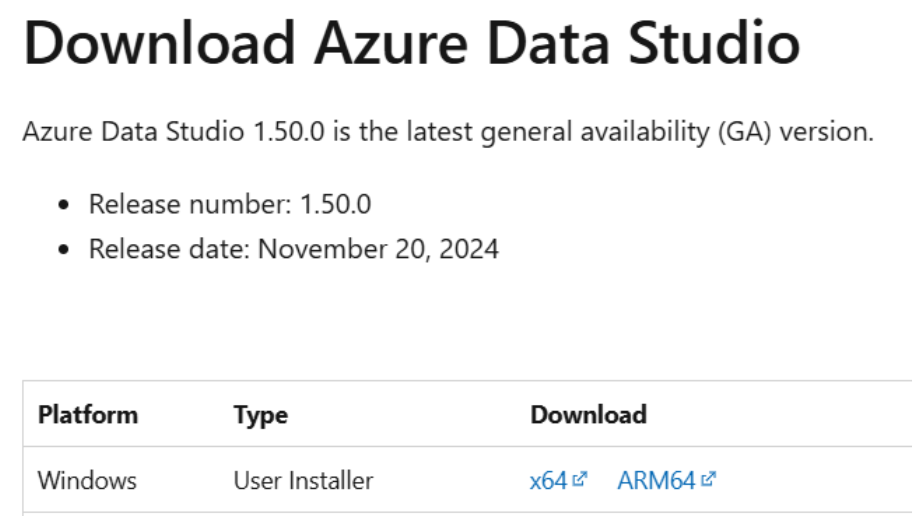
Afterward, I downloaded and installed Azure Data Studio. Once installed, I opened the application and maximized the window. In Azure Data Studio, I went to "Connections" and clicked "Add New Connection." I selected "Microsoft SQL Server" as the connection type and chose "Parameters" as the input method. Then, I copied the server name from the Azure portal and pasted it into the connection window in Azure Data Studio. For authentication, I chose "Azure Active Directory," added my Azure Active Directory account, and provided my password to authenticate. Once authenticated, I closed the browser window, and my account was listed in Azure Data Studio. I then chose the database, which included a default "master" database.
I encountered an error during authentication when entering my username and password, specifically "not found in MSAL cache." To resolve this, I decided to try using the latest Insider build of Azure Data Studio, which I downloaded from a GitHub link.
After installing the Insider build, I went to the command palette (by pressing Ctrl / Cmd + Shift + P) and ran the command "Clear Azure Account Token Cache." This helped clear any cached tokens that might have been causing the authentication issue, allowing me to proceed without further errors.
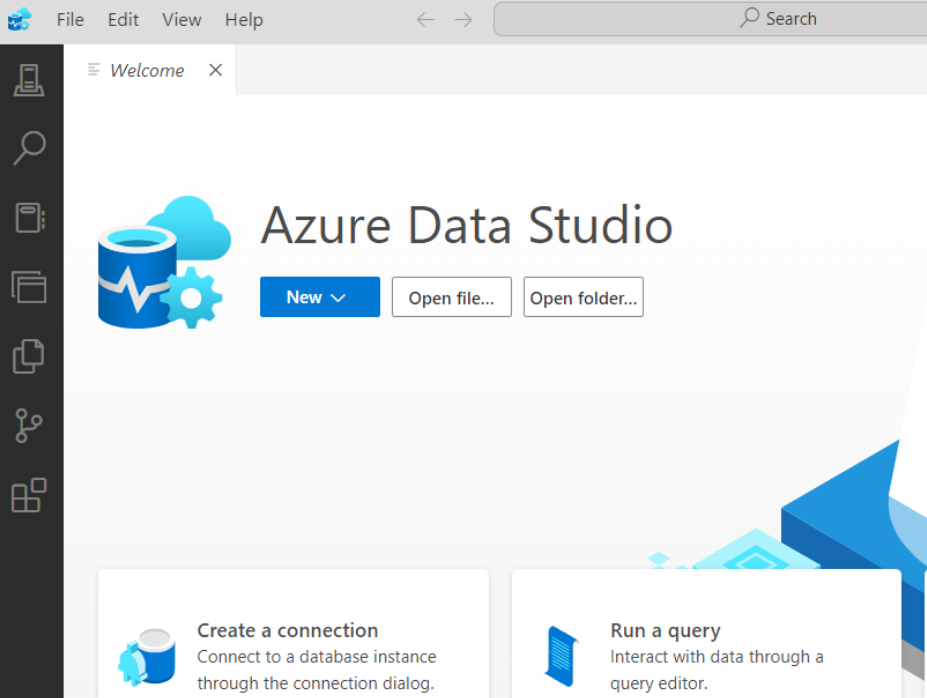
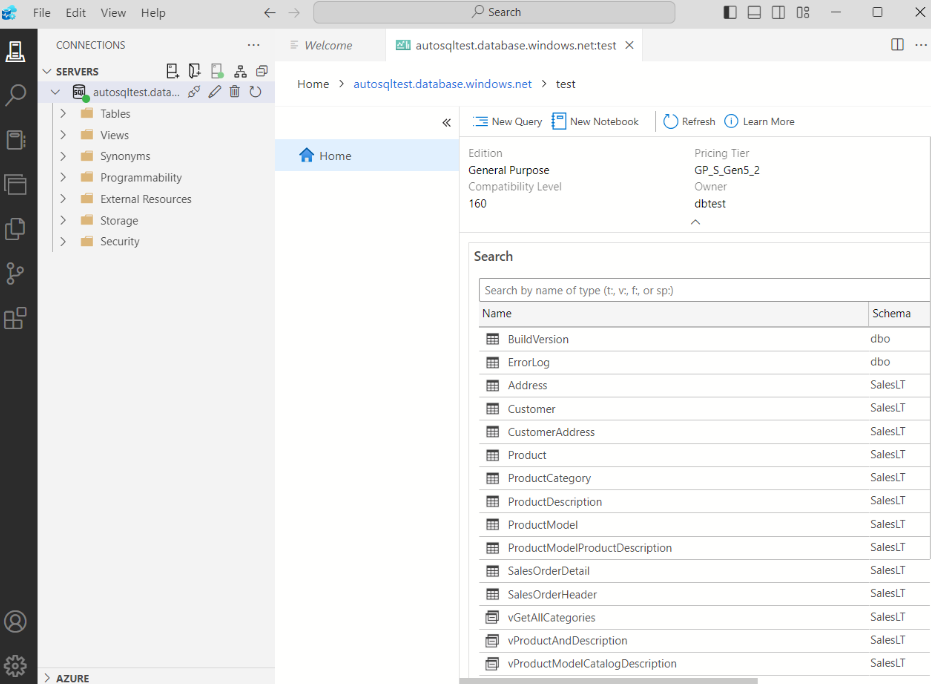
I ensured "Encrypt mandatory" was set to true and clicked "Connect." Once connected, I was able to see the database and its objects (tables, views, stored procedures, etc.). To run a query, I right-clicked the server name and selected "New Query."
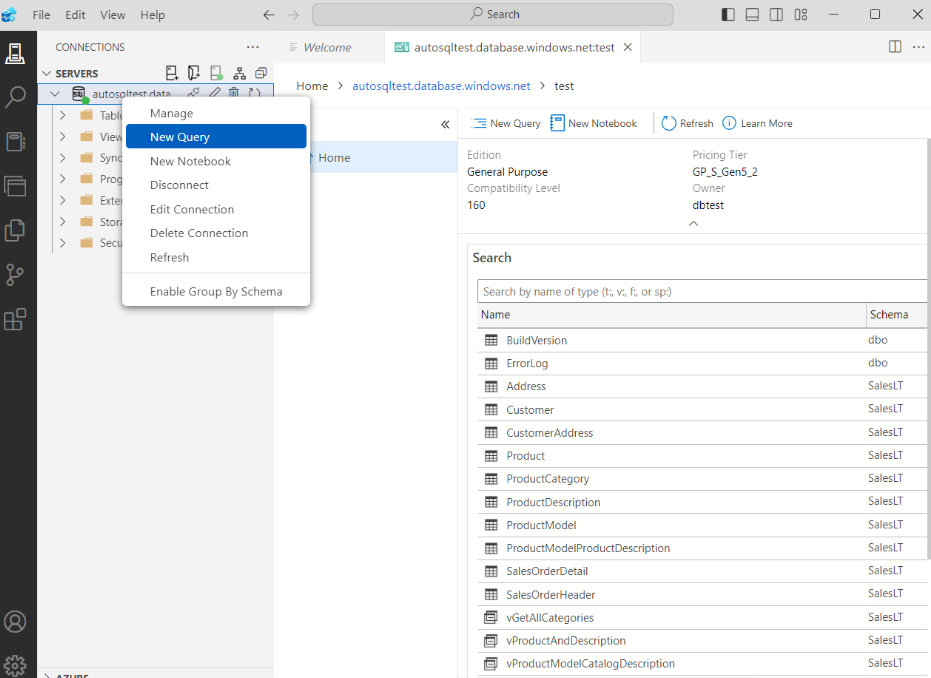
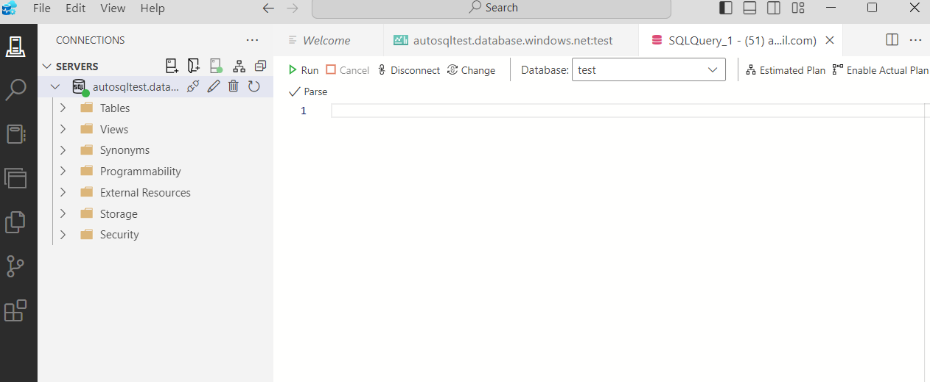
I attempted to answer a business question related to validating the accuracy of stored procedures used to retrieve customer order details from a database. Specifically, I was testing whether the stored procedure "GetCustomerOrderDetails" correctly returned the expected customer order data for a specific customer, based on a predefined set of conditions.
To test this, I executed several queries and scripts:
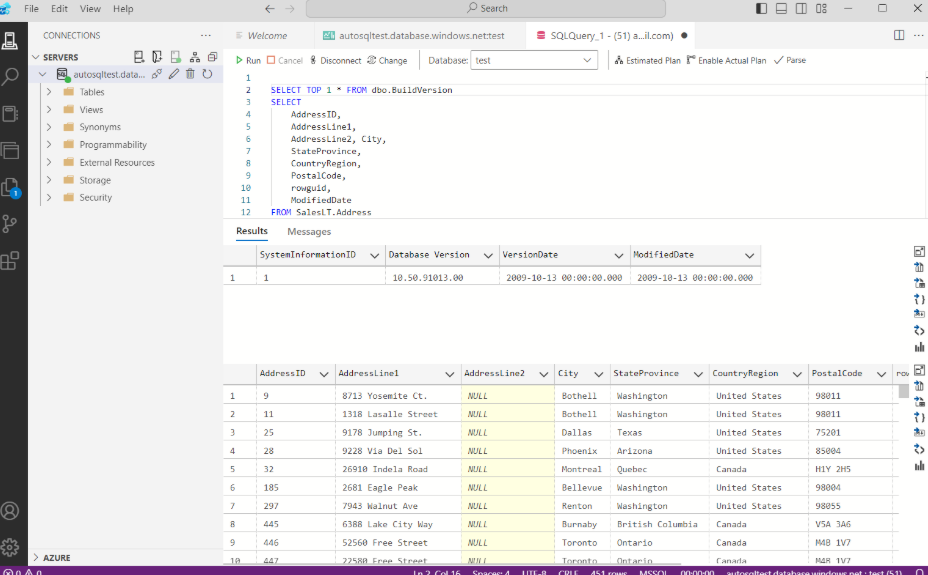
I first retrieved data from the "BuildVersion" table in the "dbo" schema and from the "Address" table in the "SalesLT" schema to ensure I could access the necessary data from the database.
I then installed the tSQLt framework to my development database (AdventureWorks) by executing the "tSQLt.class.sql" script, which is a tool for unit testing SQL Server stored procedures.
I created multiple stored procedures, such as "GetCustomerOrderDetails", "GetCompanyAddress", and "GetLargestFreightsbyCustomer", each designed to retrieve specific business information, like order details, company addresses, and top customers based on freight charges.
I created a test case where I set up two tables: "expected" (which held the anticipated results for customer orders) and "actual" (where the results from the stored procedure would be inserted). I used the customer ID "29796" and set a minimum order quantity of "10" to ensure that only valid orders (those meeting the criteria) were returned.
I then inserted data into the expected table with hardcoded values representing the expected order details, including the product name, quantity, and price. I executed the stored procedure "GetCustomerOrderDetails" for the given customer and inserted the results into the actual table.
To compare the two tables ("expected" and "actual"), I used the "tSQLt.AssertEqualsTable" function. This function validated whether the data returned by the stored procedure matched the expected results.
Finally, I created a test class and ran the test case using the "tSQLt.Run" command. The test returned true, confirming that the stored procedure correctly retrieved the customer order details and that the results matched the expected values.
Presented below are the details, including the query and accompanying screenshots.
I entered the following query and executed it to retrieve data from the database. I first retrieved the first row from the "BuildVersion" table in the "dbo" schema. Then I retrieved specific columns from the "Address" table in the "SalesLT" schema.
SELECT TOP 1 * FROM dbo.BuildVersion;
SELECT
    AddressID,
    AddressLine1,
    AddressLine2, City,
    StateProvince,
    CountryRegion,
    PostalCode,
    rowguid,
    ModifiedDate
FROM SalesLT.Address;
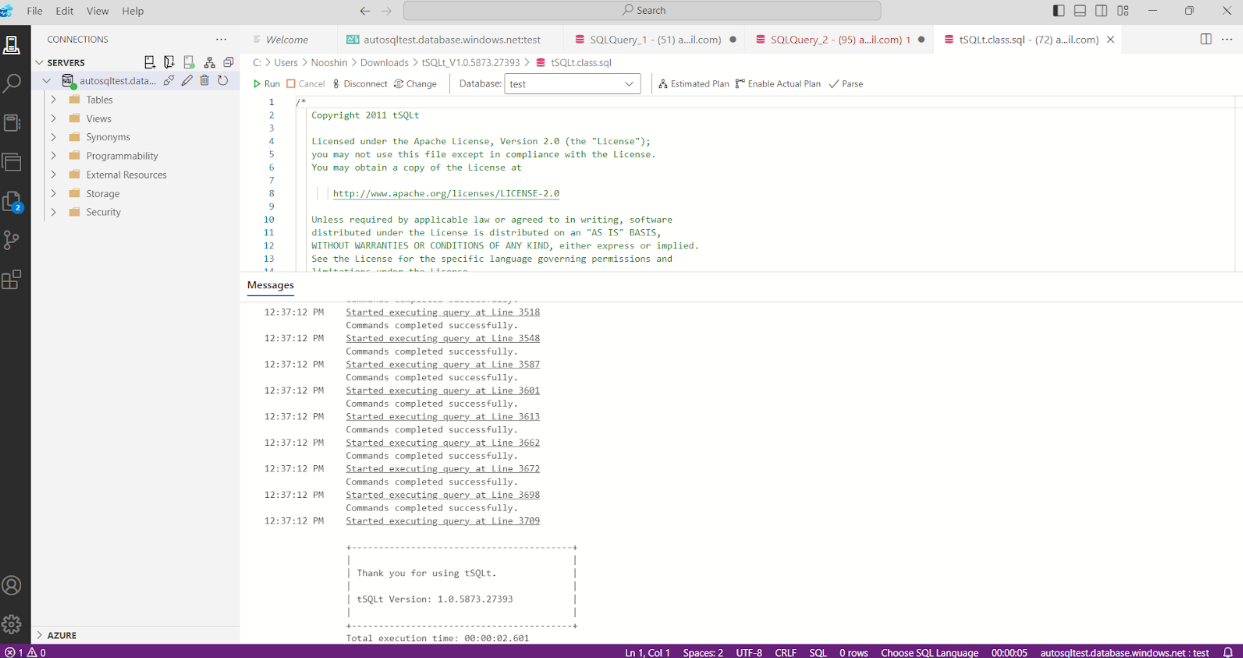
I downloaded tSQLt Version: 1.0.5873.27393. Next, I needed to install tSQLt to my development database (AdventureWorks) by executing the "tSQLt.class.sql" script, which was included in the zip file. I opened the "tSQLt.class.sql" file in Azure Data Studio and ran the script to install it.
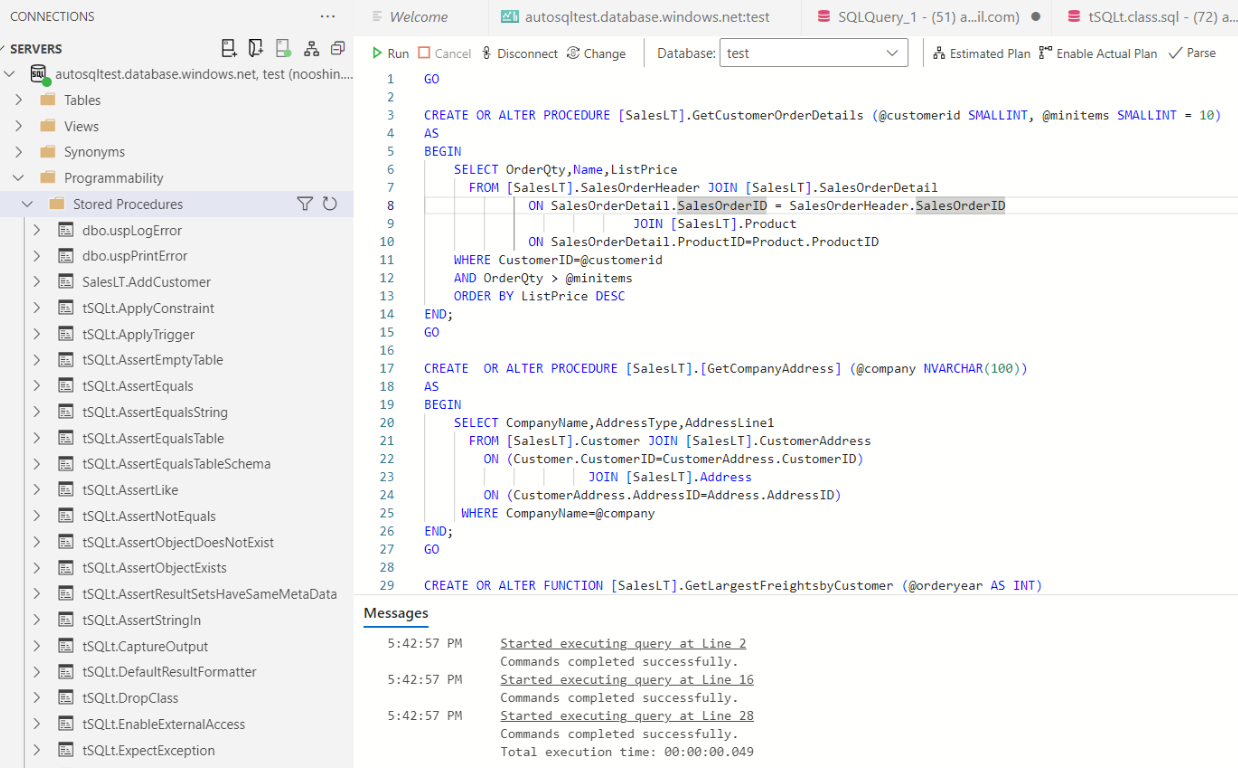
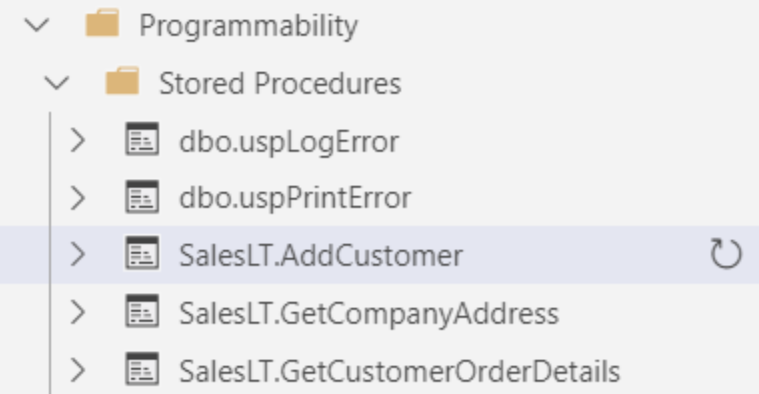
I created procedures in the object explorer under the SalesLT schema using the following script. One of these stored procedures retrieved the details of customer orders from the database. I considered the "CustomerID" for which the order details were to be fetched. The minimum order quantity was set to 10 by default, so only orders with a quantity greater than this value were returned. I joined the "SalesOrderHeader", "SalesOrderDetail", and "Product" tables to fetch the order details.
I filtered the orders for a specific customer ("CustomerID") and ensured that the order quantity was greater than the specified "@minitems". The results were ordered by "ListPrice" in descending order.
Next, I created a stored procedure to retrieve the address information of a company. I joined the "Customer", "CustomerAddress", and "Address" tables to fetch the address-related details. I filtered the results to find the specific company by its name ("CompanyName").
Additionally, I created a stored procedure to select the top 5 customers who spent the most on freight during a specified year. The procedure filtered orders using "YEAR(orderdate) = @orderyear" to consider only orders in the given year. I grouped the data by "CustomerID" and calculated the total freight charge using "SUM(freight)". The results were ordered by total freight ("totalfreight") in descending order, and the top customers were returned.
GO

CREATE OR ALTER PROCEDURE [SalesLT].GetCustomerOrderDetails (@customerid SMALLINT, @minitems SMALLINT = 10)
AS
BEGIN
    SELECT OrderQty, Name, ListPrice
    FROM [SalesLT].SalesOrderHeader
    JOIN [SalesLT].SalesOrderDetail
        ON SalesOrderDetail.SalesOrderID = SalesOrderHeader.SalesOrderID
    JOIN [SalesLT].Product
        ON SalesOrderDetail.ProductID = Product.ProductID
    WHERE CustomerID = @customerid
    AND OrderQty > @minitems
    ORDER BY ListPrice DESC
END;
GO

CREATE OR ALTER PROCEDURE [SalesLT].[GetCompanyAddress] (@company NVARCHAR(100))
AS
BEGIN
    SELECT CompanyName, AddressType, AddressLine1
    FROM [SalesLT].Customer
    JOIN [SalesLT].CustomerAddress
        ON Customer.CustomerID = CustomerAddress.CustomerID
    JOIN [SalesLT].Address
        ON CustomerAddress.AddressID = Address.AddressID
    WHERE CompanyName = @company
END;
GO

CREATE OR ALTER FUNCTION [SalesLT].GetLargestFreightsbyCustomer (@orderyear AS INT)
RETURNS @freight table (customerid SMALLINT, totalfreight INT)
BEGIN
    INSERT INTO @freight
    SELECT TOP 5 customerid, SUM(freight) AS totalfreight
    FROM SalesLT.SalesOrderHeader
    WHERE YEAR(orderdate) = @orderyear
    GROUP BY customerid
    ORDER BY totalfreight DESC;
    RETURN;
END;
GO
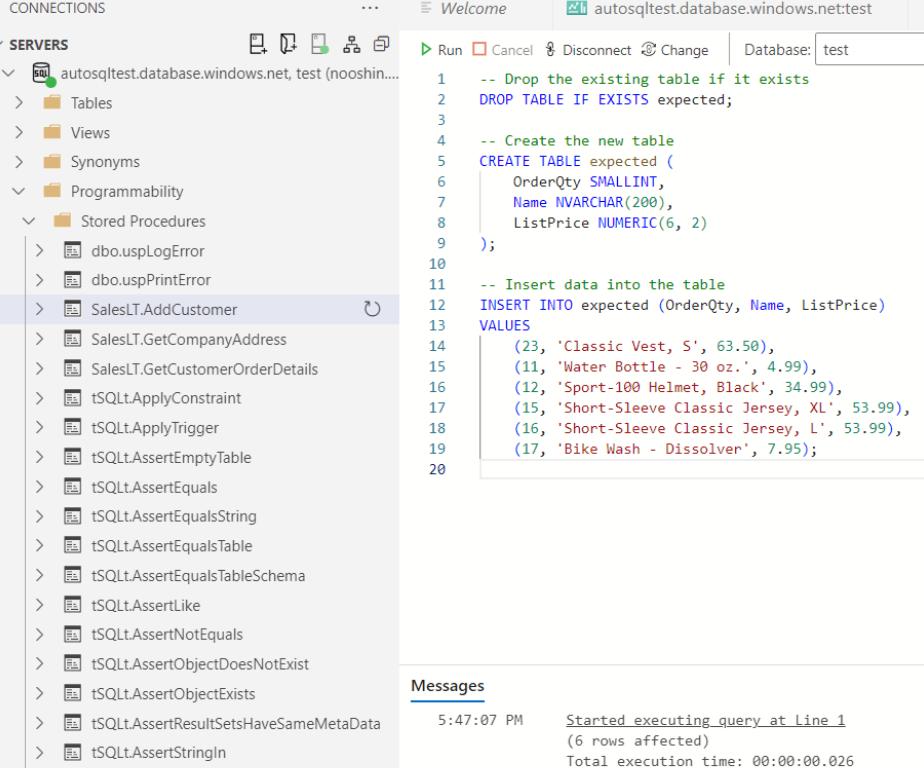
I created a test case and a temporary table named "expected" to hold the anticipated data. I dropped the existing table if it existed, then created a new table with columns for "OrderQty", "Name", and "ListPrice". Afterward, I inserted the expected rows into the table, containing product quantities, names, and prices.
-- Drop the existing table if it exists
DROP TABLE IF EXISTS expected;

-- Create the new table
CREATE TABLE expected (
    OrderQty SMALLINT,
    Name NVARCHAR(200),
    ListPrice NUMERIC(6, 2)
);

-- Insert data into the table
INSERT INTO expected (OrderQty, Name, ListPrice)
VALUES
    (23, 'Classic Vest, S', 63.50),
    (11, 'Water Bottle - 30 oz.', 4.99),
    (12, 'Sport-100 Helmet, Black', 34.99),
    (15, 'Short-Sleeve Classic Jersey, XL', 53.99),
    (16, 'Short-Sleeve Classic Jersey, L', 53.99),
    (17, 'Bike Wash - Dissolver', 7.95);
I created a temporary table called "actual" to store the data after executing the stored procedure. Both the "actual" and "expected" tables had the same schema. I dropped the existing "actual" table if it existed, then created a new one with columns for "OrderQty", "Name", and "ListPrice". I declared a variable for the customer ID (29796) and executed the stored procedure to insert data into the "actual" table.
-- Drop the existing table if it exists
IF OBJECT_ID('actual', 'U') IS NOT NULL
    DROP TABLE actual;

-- Now, create the new table
CREATE TABLE actual (
    OrderQty SMALLINT,
    Name NVARCHAR(200),
    ListPrice NUMERIC(6, 2)
);

-- Declare a variable to store the customer ID
DECLARE @custid SMALLINT;
SET @custid = 29796;

-- Insert data into the actual table by executing the stored procedure
INSERT INTO actual
EXEC [SalesLT].GetCustomerOrderDetails @custid;
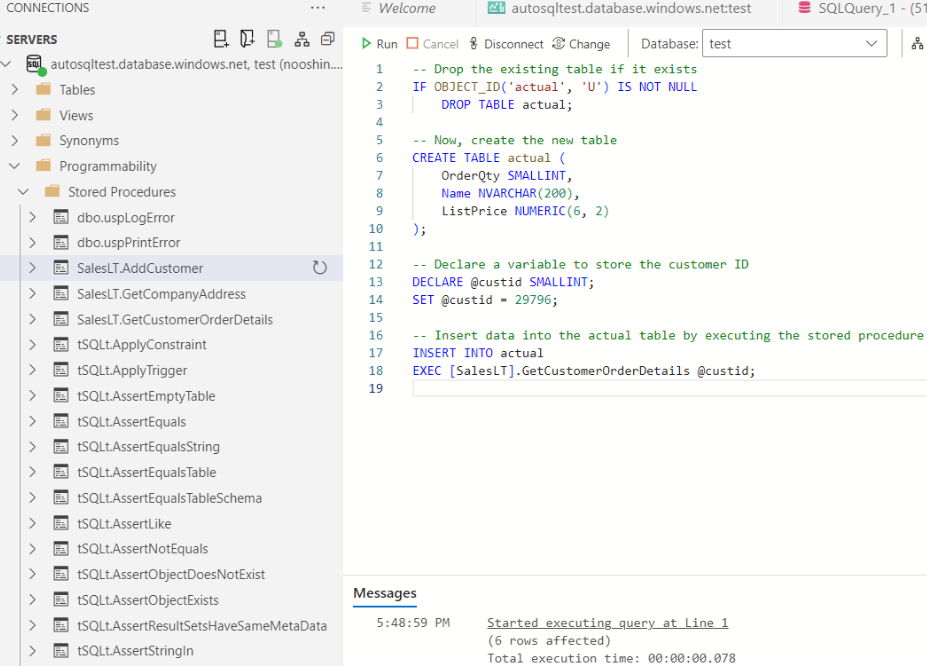
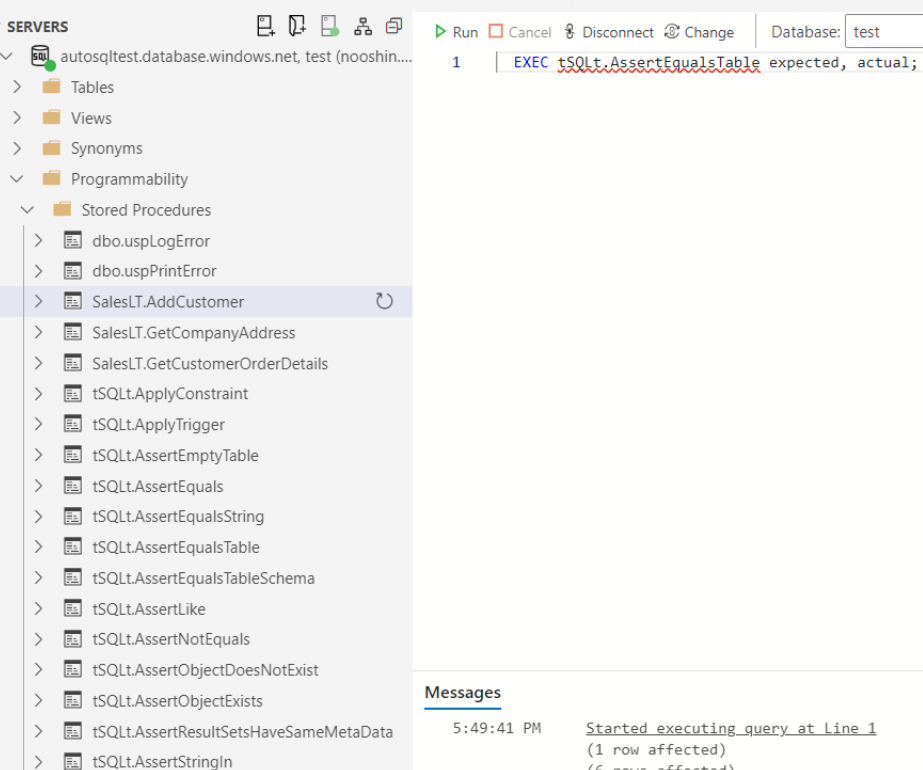
I used the "tSQLt.AssertEqualsTable" stored procedure to compare the data in the "actual" table with the data in the "expected" table.
EXEC tSQLt.AssertEqualsTable expected, actual;
I created a test class to contain the test case by executing the "tSQLt.NewTestClass" stored procedure with the name "'testSalesLT'".
EXEC tSQLt.NewTestClass 'testSalesLT';
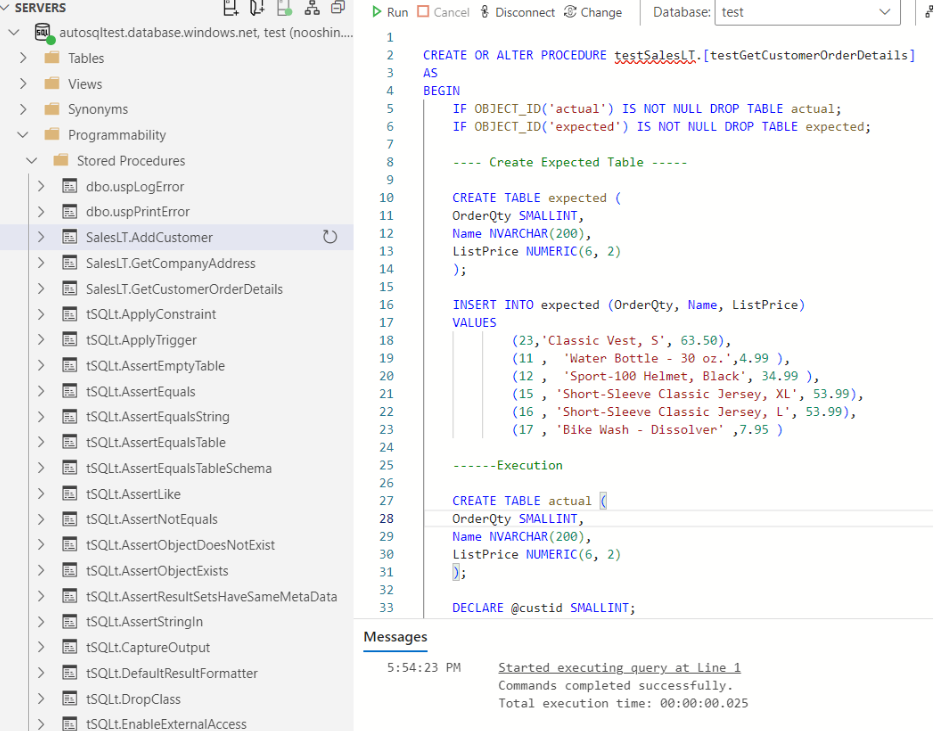
I created a test stored procedure called "testGetCustomerOrderDetails" in the "SalesLT" schema. First, I ensured that any pre-existing tables named "actual" and "expected" were dropped using the "IF OBJECT_ID" check. Then, I proceeded to create the "expected" table with columns for "OrderQty", "Name", and "ListPrice", and inserted a set of test data into it.
Next, I created the "actual" table with the same structure and declared a variable "@custid" to hold the customer ID value, which I set to 29796. I then used the "EXEC" command to insert data into the "actual" table by executing the "GetCustomerOrderDetails" stored procedure, passing in the "@custid".
Finally, I used the "tSQLt.AssertEqualsTable" function to compare the data in the "expected" and "actual" tables to ensure they matched.
CREATE OR ALTER PROCEDURE testSalesLT.[testGetCustomerOrderDetails]
AS
BEGIN
    IF OBJECT_ID('actual') IS NOT NULL DROP TABLE actual;
    IF OBJECT_ID('expected') IS NOT NULL DROP TABLE expected;

    ---- Create Expected Table -----

    CREATE TABLE expected (
    OrderQty SMALLINT,
    Name NVARCHAR(200),
    ListPrice NUMERIC(6, 2)
    );

    INSERT INTO expected (OrderQty, Name, ListPrice)
    VALUES
            (23,'Classic Vest, S', 63.50),
            (11 ,  'Water Bottle - 30 oz.',4.99 ),
            (12 ,  'Sport-100 Helmet, Black', 34.99 ),
            (15 , 'Short-Sleeve Classic Jersey, XL', 53.99),
            (16 , 'Short-Sleeve Classic Jersey, L', 53.99),
            (17 , 'Bike Wash - Dissolver' ,7.95 );

    ------Execution------

    CREATE TABLE actual (
    OrderQty SMALLINT,
    Name NVARCHAR(200),
    ListPrice NUMERIC(6, 2)
    );

    DECLARE @custid SMALLINT;
    SET @custid = 29796;

    INSERT INTO actual
    EXEC  [SalesLT].GetCustomerOrderDetails @custid;

    ------Assertion------

    EXEC tSQLt.AssertEqualsTable expected, actual;

END;
GO
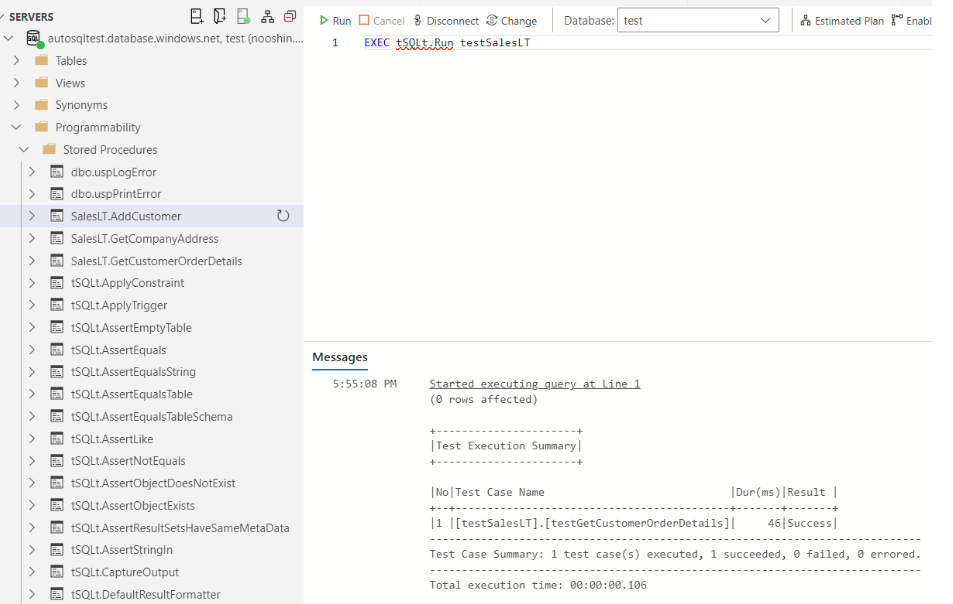
Then, I ran the test case using the command "EXEC tSQLt.Run testSalesLT", and it evaluated to true, meaning the expected and actual results matched.
EXEC tSQLt.Run testSalesLT;
The test returned the following results. This indicated that the stored procedure "testGetCustomerOrderDetails" had produced the correct output, and the test case successfully passed.