In this section, I walk through running a container with Podman, including pulling the NGINX container, verifying images, and interacting with the container.
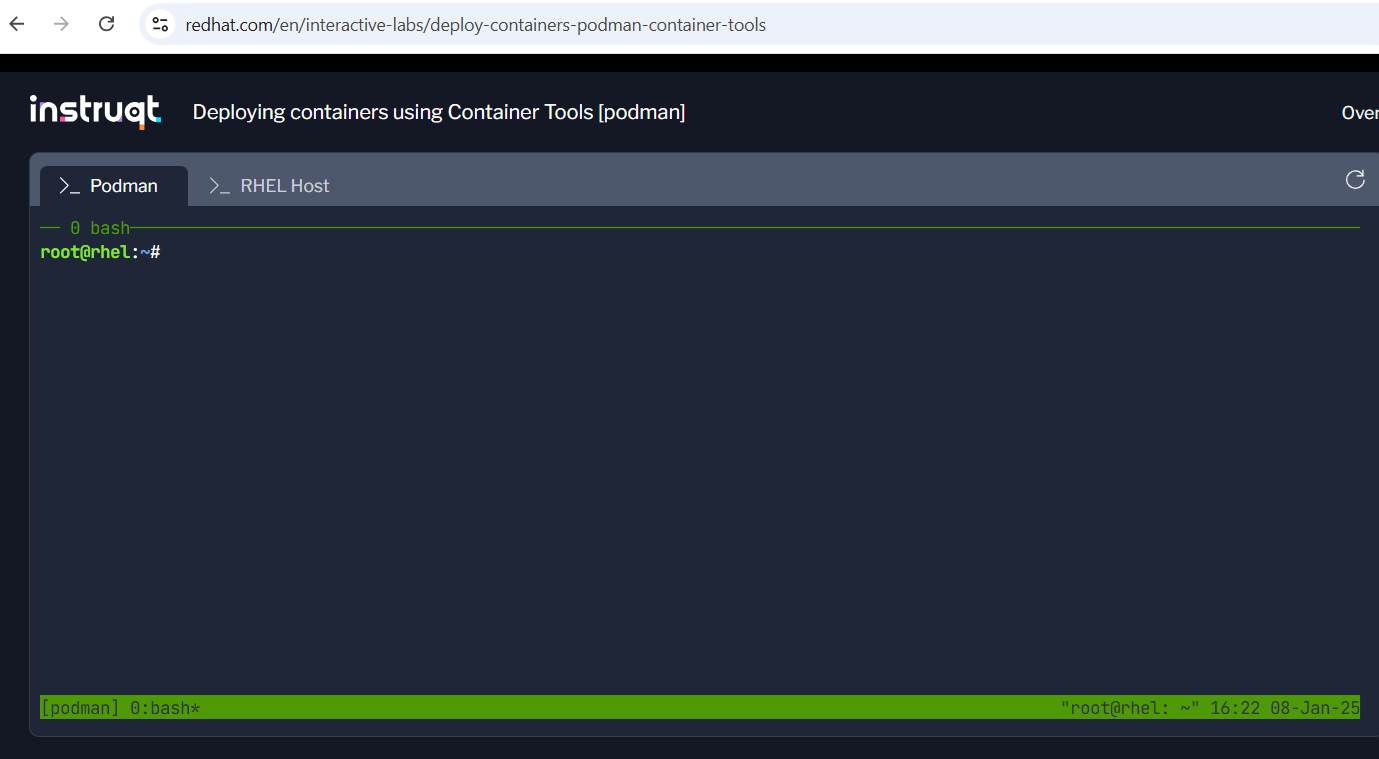
If I couldn’t install Podman on my system, I found a solution on Red Hat’s interactive labs: Red Hat Interactive Labs.
To list all images in the local storage, I typed:
podman imagesThis gave me the output shown here:
I wanted to run NGINX, a popular web server for static websites. Running it in a container allows me to test it without installing it directly on my system.
To pull the NGINX image, I used the following command:
podman pull nginxThis command fetches the NGINX image from a container registry, such as Docker Hub, and downloads it to my local machine. Podman prepares it for use in a container.
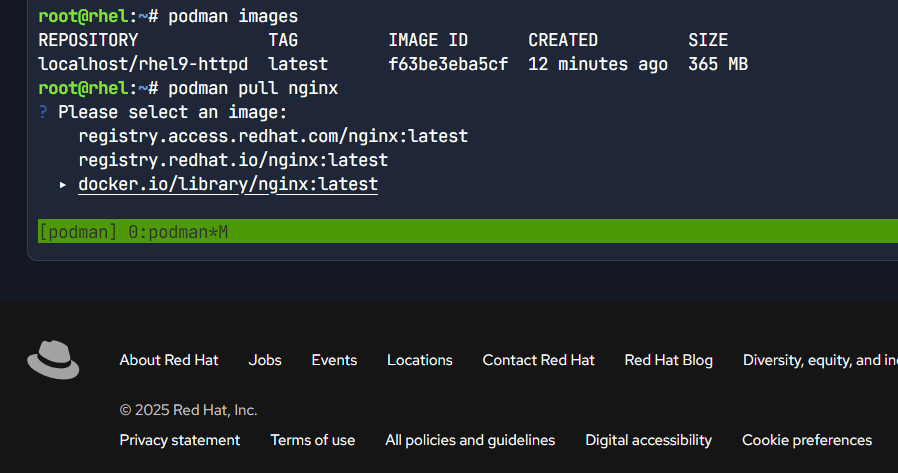
When I ran the podman pull nginx command, I saw several options for where to pull the image from:
- registry.access.redhat.com/nginx:latest (Red Hat registry)
- registry.redhat.io/nginx:latest (another Red Hat registry)
- docker.io/library/nginx:latest (Docker Hub)
Podman asked me to choose an image with the prompt: "Please select an image:"
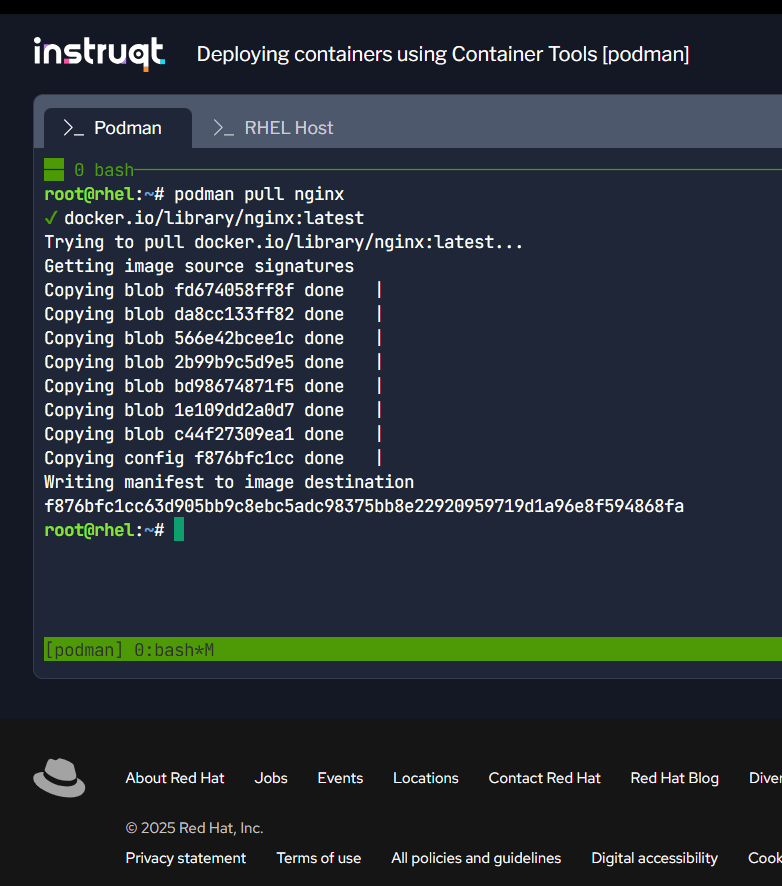
I selected the image from Docker Hub: docker.io/library/nginx:latest, and Podman began the pull process.
The progress was shown as "Copying blob," indicating parts of the image being downloaded. Once complete, Podman finished by writing the image’s manifest to my system. Now, the image was ready for use.
After pulling the image, I used the command:
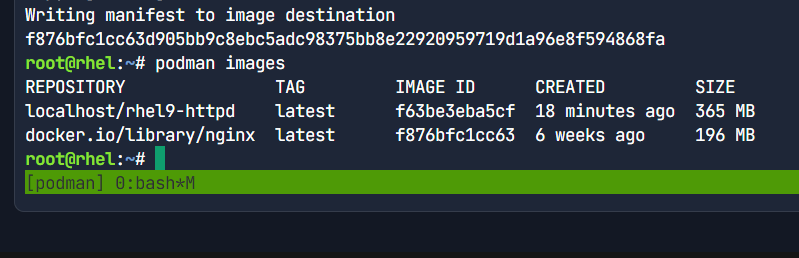
podman imagesThis listed the images on my system:
localhost/rhel9-httpd(A local RHEL9 image with Apache HTTP server)docker.io/library/nginx:latest(The NGINX image I just pulled from Docker Hub)
Now, I had two images:
- RHEL9 with Apache HTTPD (created 18 minutes ago, size: 365 MB)
- NGINX (created 6 weeks ago, size: 196 MB)
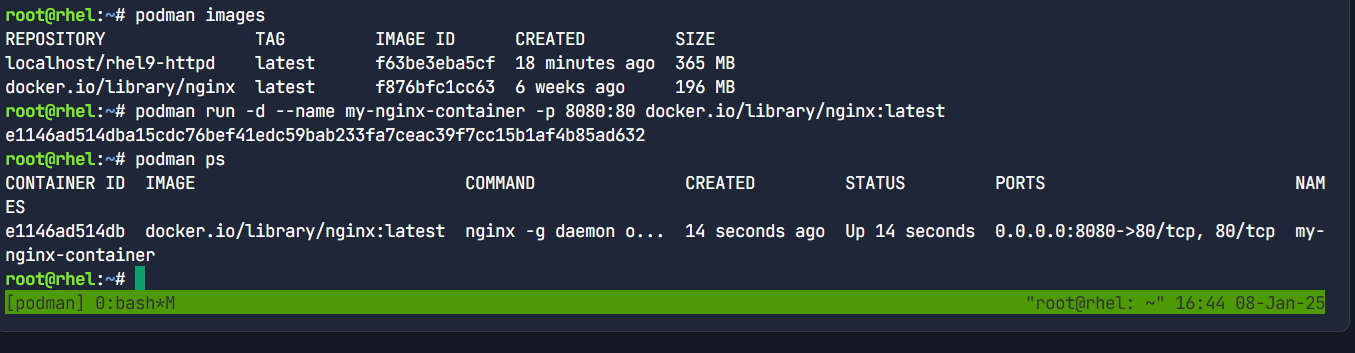
Next, I wanted to run the NGINX container. I executed the command:
podman run -d --name my-nginx-container -p 8080:80 docker.io/library/nginx:latestI then ran podman ps to confirm that the container was running. The result was shown here:
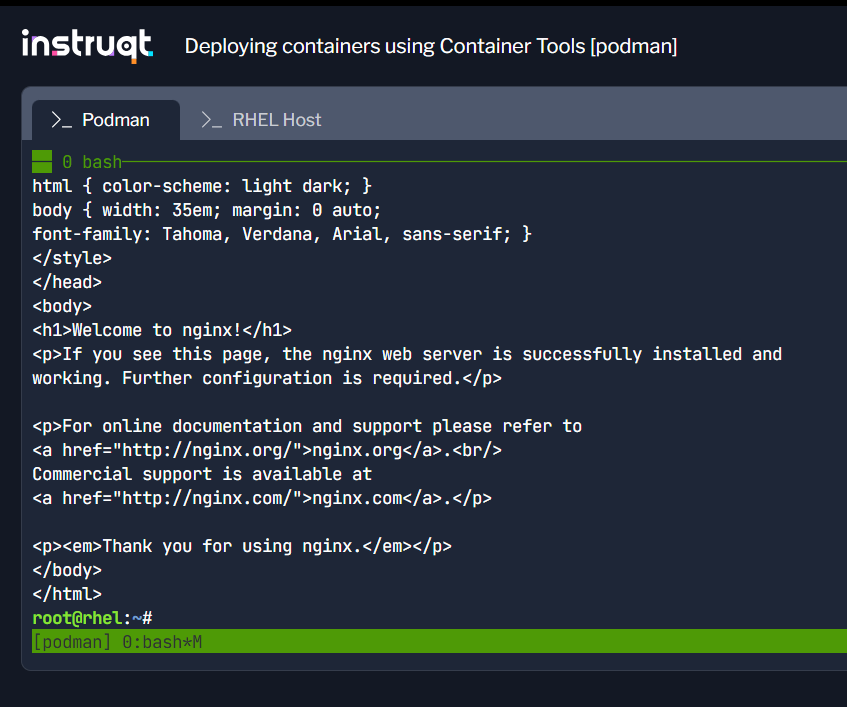
I checked if the NGINX container was working by running:
curl http://localhost:8080I saw the default NGINX welcome page, confirming the server was up and running. To customize it, I would need to replace the default content with my own files. This result is shown here:
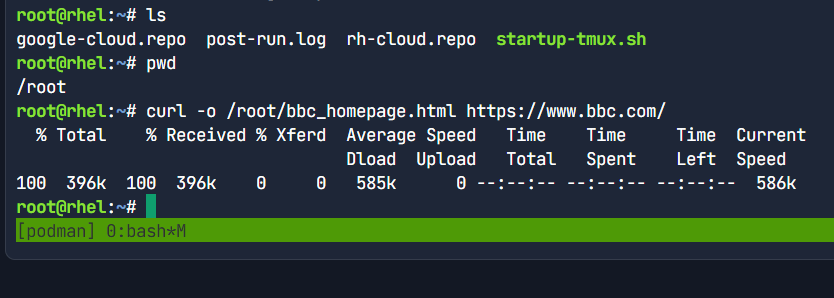
Next, I wanted to download a webpage. Using curl, I fetched the HTML of the BBC homepage:
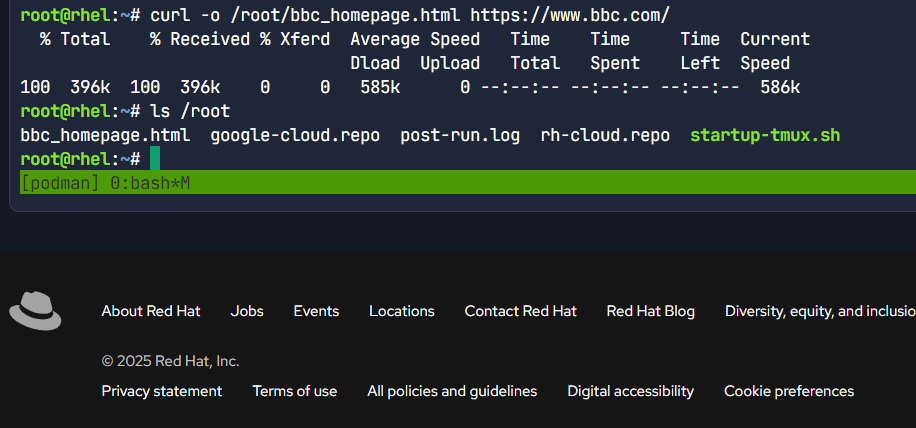
curl -o /root/bbc_homepage.html https://www.bbc.com/This saved the HTML as bbc_homepage.html in the /root directory. I verified the download by listing the files in /root with the ls command, shown here:
To confirm the file's content, I used the cat command:
cat /root/bbc_homepage.htmlThis displayed the HTML content, as shown here:
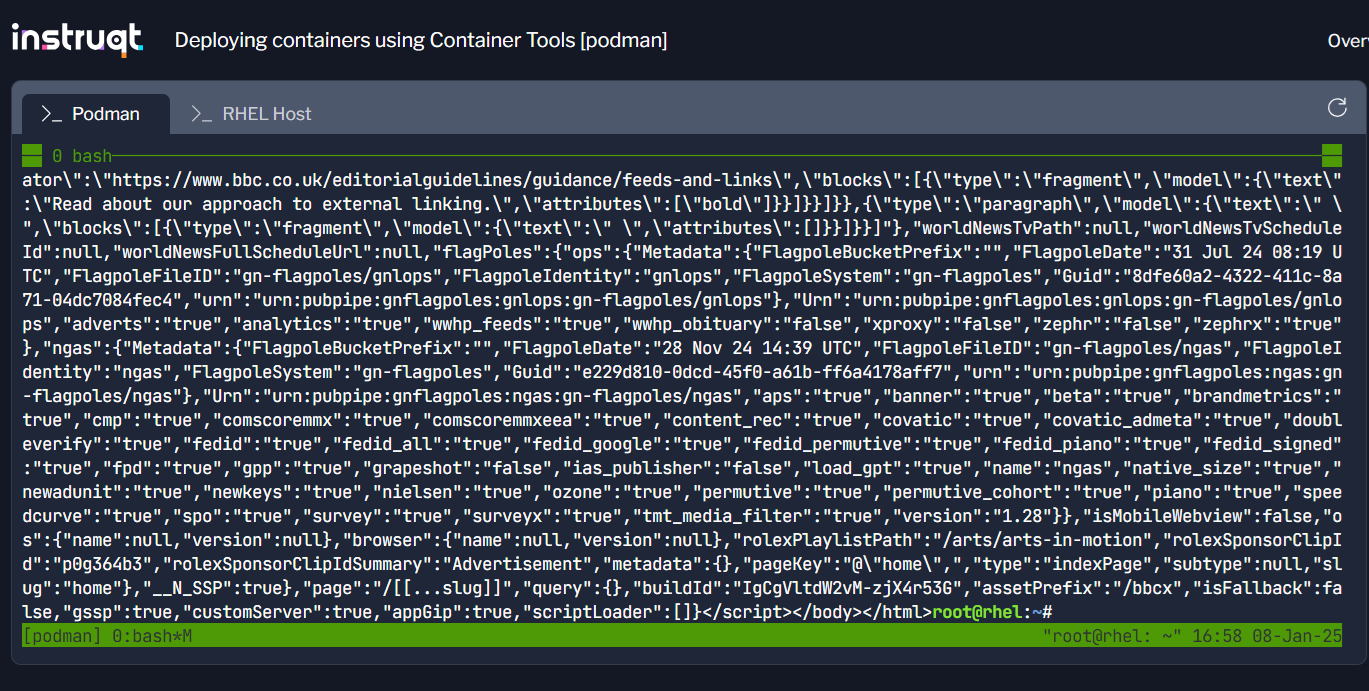
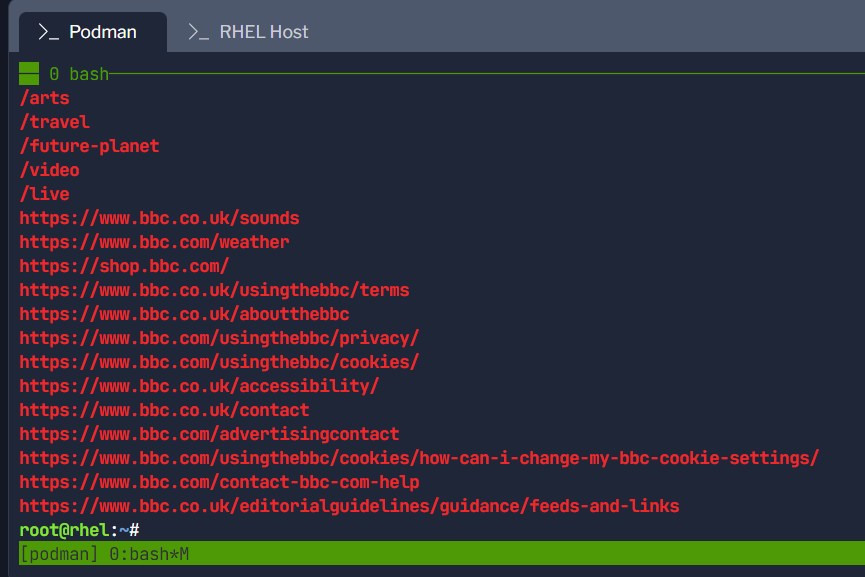
I could use tools like grep or awk to extract specific data from the downloaded HTML. For example, to extract all the links, I ran:
grep -oP '(?<=href=")[^"]+' /root/bbc_homepage.htmlThis command found and listed all the links in the HTML, shown here:
This is how I set up and ran an NGINX container using Podman, pulled a webpage, and analyzed its content.